



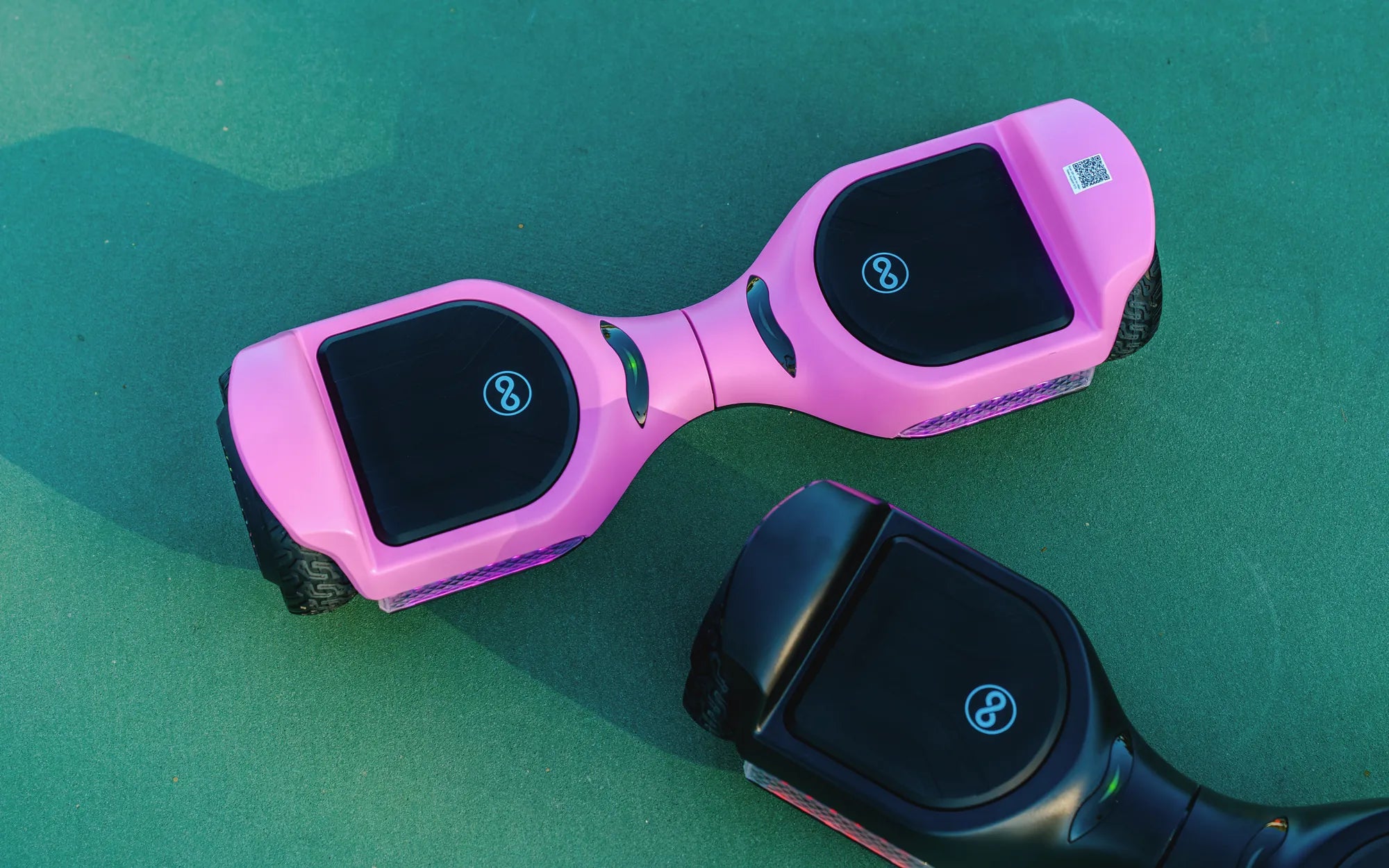
Ever wished you could control your hoverboard with just a tap on your phone? Connecting your phone to your hoverboard unlocks a world of convenience, customization, and advanced features. Whether you want to adjust speed settings, monitor battery life, or play music through built-in speakers, pairing your devices is easier than you think. Let’s dive into the step-by-step process to make it happen.
Why Connect Your Phone to Your Hoverboard?
Pairing your phone with your hoverboard isn’t just a tech-savvy move—it’s a game-changer. Here’s why:
- Enhanced Control: Adjust speed modes, toggle lights, or lock/unlock your hoverboard remotely.
- Real-Time Stats: Monitor battery levels, distance traveled, and speed directly from your phone.
- Entertainment: Play music via built-in speakers if your hoverboard supports Bluetooth audio.
- Safety Features: Receive alerts for low battery or overheating.
Prerequisites for Connecting Your Phone to Your Hoverboard
Before you start, ensure you have the following:
- A hoverboard with Bluetooth connectivity (check the manual if unsure).
- A compatible smartphone (iOS or Android).
- The manufacturer’s app (if required) downloaded from the App Store or Google Play.
- Fully charged hoverboard and phone to avoid interruptions.
Step-by-Step Guide to Pairing Your Phone with Your Hoverboard
Step 1: Power On Your Hoverboard
Turn on your hoverboard and ensure it’s in pairing mode. Most models enter this mode automatically when powered on, indicated by a blinking light or audible beep. Refer to your manual if you’re unsure.
Step 2: Enable Bluetooth on Your Phone
Open your phone’s settings and turn on Bluetooth. Wait for your hoverboard’s name to appear in the list of available devices. If it doesn’t show up, restart Bluetooth or toggle airplane mode.
Step 3: Connect to Your Hoverboard
Tap your hoverboard’s name in the Bluetooth menu to pair. Some models require a PIN (often "0000" or "1234"). Once connected, you’ll hear a confirmation sound or see a notification.
Step 4: Open the Manufacturer’s App (If Applicable)
If your hoverboard relies on a dedicated app, open it and follow the in-app instructions to sync your device. This may include calibrating settings or registering your hoverboard.
Step 5: Test the Connection
Try adjusting settings like speed modes or lights via the app. Play music if your hoverboard supports it. If everything works, you’re all set!
Troubleshooting Common Connection Issues
Ran into a snag? Here’s how to fix it:
- Device Not Found: Restart both your phone and hoverboard. Ensure Bluetooth is enabled and the hoverboard is in pairing mode.
- Connection Drops: Move closer to the hoverboard (within 10 feet) and avoid interference from other electronics.
- App Errors: Update the app or reinstall it. Check for firmware updates for your hoverboard.
- No Sound: Ensure your phone’s volume is up and the hoverboard’s speakers are enabled in the app.
Maximizing Your Connected Hoverboard Experience
Now that your devices are paired, explore these pro tips:
- Customize LED light patterns via the app for a personalized ride.
- Set speed limits for beginners or kids.
- Use GPS tracking (if available) to locate your hoverboard if it’s lost or stolen.
- Schedule regular maintenance checks through the app to keep your hoverboard in top shape.
Safety Tips for Using a Connected Hoverboard
While tech enhances fun, safety comes first:
- Avoid using your phone while riding to prevent accidents.
- Keep software updated to patch security vulnerabilities.
- Disable Bluetooth when not in use to save battery and prevent unauthorized access.
- Never share your hoverboard’s app login details.
Ready to take your hoverboard rides to the next level? With your phone now connected, you’ve unlocked a smarter, more interactive way to glide. Whether you’re tweaking settings mid-ride or jamming to your favorite tunes, the possibilities are endless. Strap on your helmet, power up, and enjoy the ride—your hoverboard just got a whole lot cooler!
Is It Worth Buying a Hoverboard? A Comprehensive Guide to Making the Right Choice
Charging Hoverboard Overnight: Risks, Safety Tips, and Best Practices