



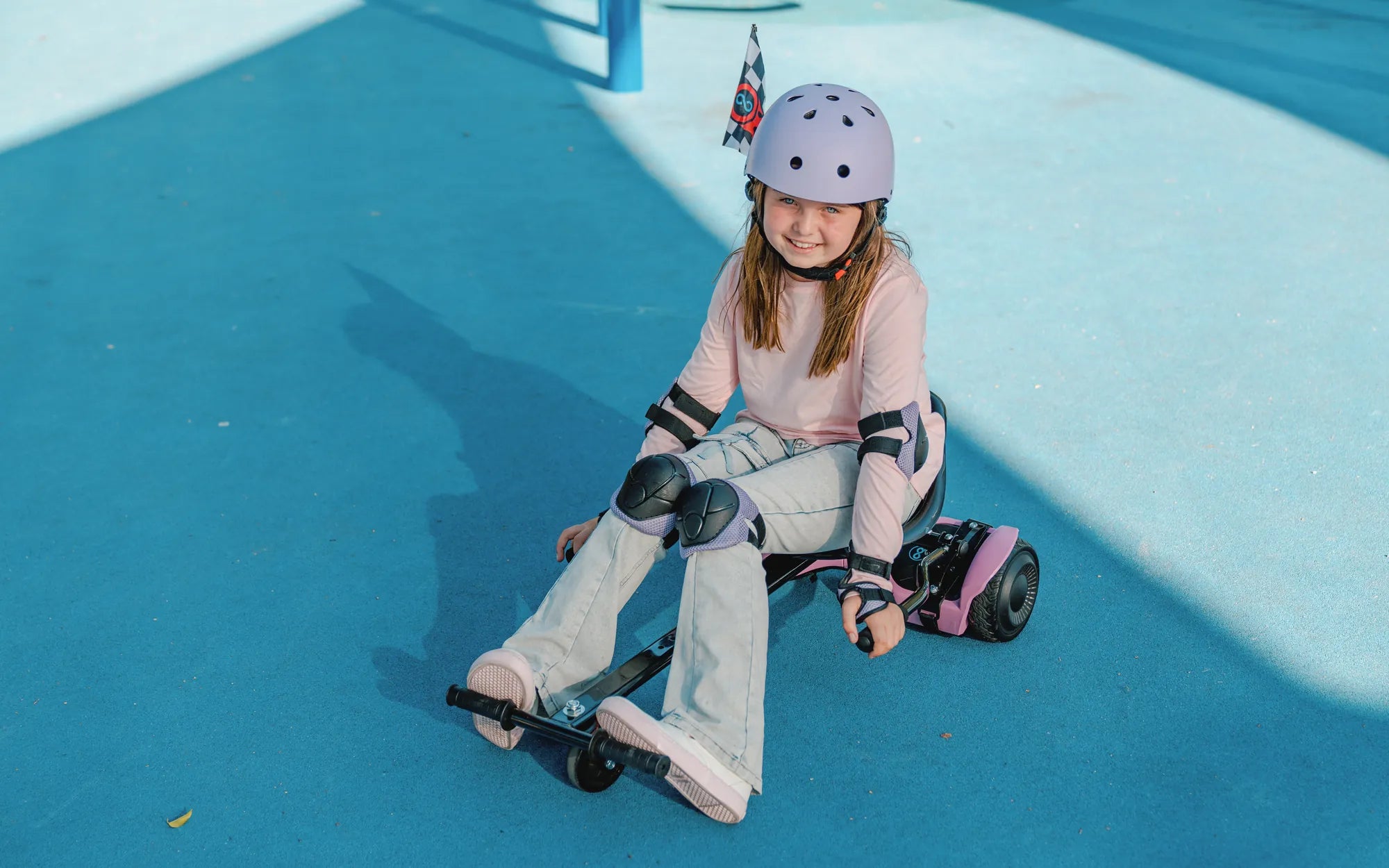
Ever wanted to blast your favorite tunes while cruising on your hoverboard? Setting up Bluetooth on your hoverboard is easier than you think! Whether you're a tech newbie or a seasoned rider, this guide will walk you through every step to get your hoverboard connected in no time.
Why Connect Your Hoverboard to Bluetooth?
Bluetooth connectivity on a hoverboard opens up a world of possibilities. From playing music through built-in speakers to controlling your board via a smartphone app, Bluetooth enhances your riding experience. Some hoverboards even allow you to adjust speed settings or check battery levels remotely. If your hoverboard supports Bluetooth, it's worth taking the time to set it up properly.
What You'll Need Before Starting
Before diving into the setup process, make sure you have everything ready:
- A Bluetooth-enabled hoverboard
- A smartphone or tablet with Bluetooth capabilities
- The hoverboard's user manual (for model-specific instructions)
- Fully charged hoverboard and device
- The manufacturer's app (if required)
Step 1: Power On Your Hoverboard
Start by turning on your hoverboard. Most models require you to press and hold the power button for a few seconds until you hear a beep or see lights activate. Ensure your hoverboard is on a flat, stable surface during setup.
Step 2: Enable Bluetooth on Your Device
Open your smartphone or tablet's settings and navigate to the Bluetooth menu. Turn on Bluetooth if it's not already enabled. Make sure your device is discoverable to other Bluetooth devices.
Step 3: Put Your Hoverboard in Pairing Mode
This step varies slightly between models, but generally involves:
- Pressing and holding a specific button (often the power button) for 5-10 seconds
- Waiting for an audible signal or flashing lights indicating pairing mode
- Some models may require using a mobile app to initiate pairing
Consult your user manual if you're unsure about your specific model's pairing process.
Step 4: Locate and Connect to Your Hoverboard
On your device's Bluetooth menu, look for your hoverboard's name in the list of available devices. Names typically include the brand or model number. Select your hoverboard to initiate pairing. You may need to enter a default passcode (often "0000" or "1234") if prompted.
Step 5: Test the Connection
Once connected, test the Bluetooth functionality:
- Play music to check audio output
- If using an app, verify you can access all features
- Check for any latency or connection issues
Troubleshooting Common Bluetooth Issues
If you encounter problems, try these solutions:
- Connection fails: Restart both devices and try again
- Audio quality issues: Ensure no obstacles are between devices and reduce distance
- App not recognizing hoverboard: Check for app updates or reinstall the app
- Pairing mode won't activate: Consult your manual for model-specific instructions
Safety Tips for Bluetooth-Enabled Hoverboards
While enjoying your Bluetooth features, remember these safety precautions:
- Keep volume at reasonable levels to maintain awareness of surroundings
- Avoid adjusting settings while moving
- Secure your phone to prevent drops while riding
- Regularly update your hoverboard's firmware for optimal performance
Now that you've mastered Bluetooth setup, your hoverboard rides just got infinitely more entertaining! Imagine cruising down the street with your favorite playlist pumping through your board's speakers – all without wires or hassle. Get ready to experience your hoverboard in a whole new way with seamless wireless connectivity at your fingertips.
Hoverboard What Is It: The Ultimate Guide to This Futuristic Ride
Hoverboard What Is It: The Ultimate Guide to This Futuristic Ride