



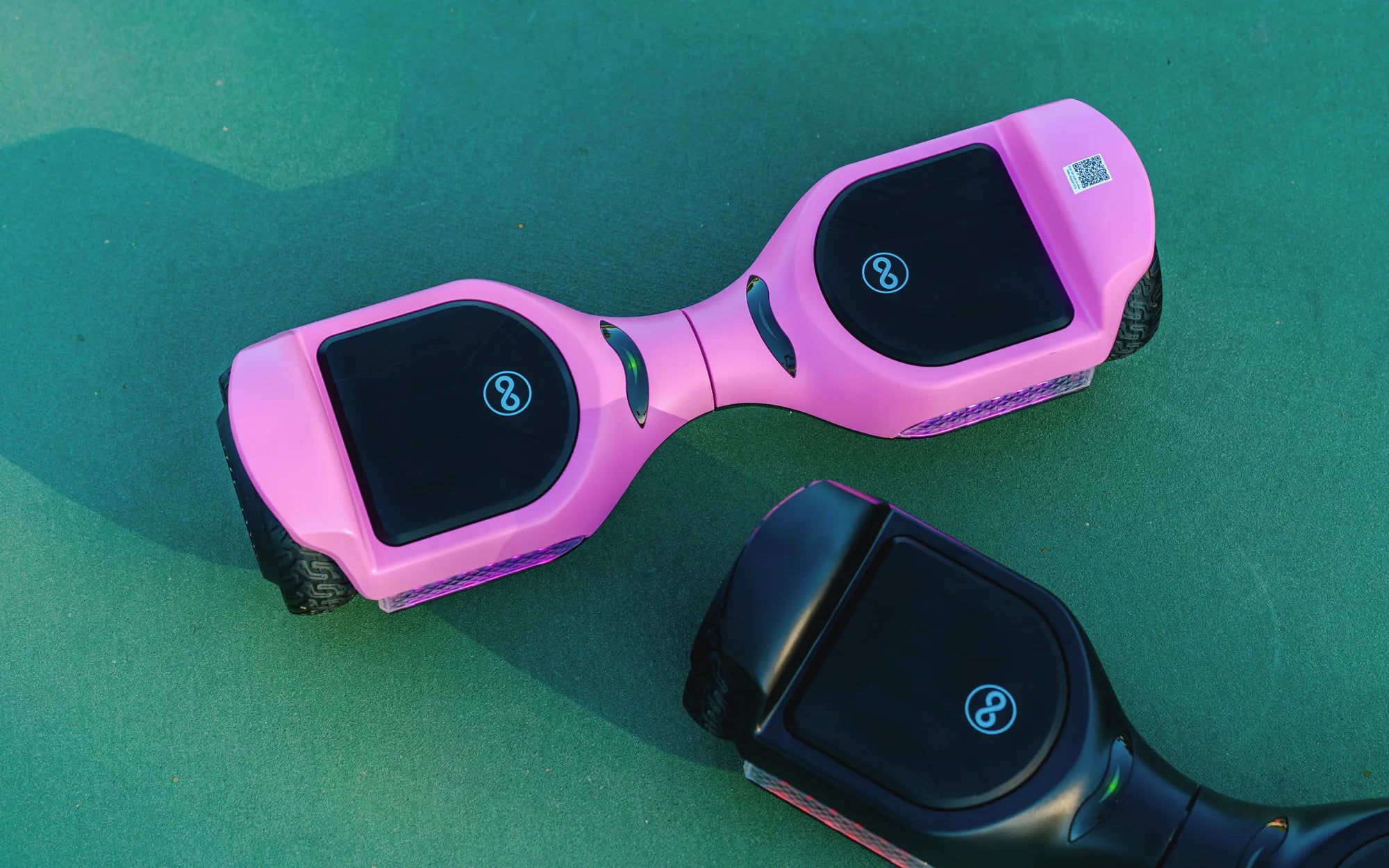
Ever wondered how to unlock the full potential of your hoverboard by connecting it to Bluetooth? Whether you want to play music or control your hoverboard wirelessly, pairing it with Bluetooth is simpler than you think. Follow this guide to get started and enjoy a seamless connection every time.
Why Connect Bluetooth to Your Hoverboard?
Connecting your hoverboard to Bluetooth opens up a world of possibilities. You can stream music directly from your smartphone, control the hoverboard remotely, or even access additional features like LED light synchronization. Bluetooth connectivity enhances the overall experience, making your rides more enjoyable and interactive.
Prerequisites for Bluetooth Pairing
Before you begin, ensure you have the following:
- A hoverboard with built-in Bluetooth functionality.
- A smartphone, tablet, or other Bluetooth-enabled device.
- Fully charged hoverboard and device battery.
- The hoverboard's user manual (optional but helpful).
Step-by-Step Guide to Connect Bluetooth to Your Hoverboard
Step 1: Turn On Your Hoverboard
Power on your hoverboard by pressing the power button. Wait for the indicator lights to stabilize, indicating that the hoverboard is ready for pairing.
Step 2: Enable Bluetooth on Your Device
Go to the settings menu on your smartphone or tablet and turn on Bluetooth. Ensure your device is discoverable to nearby Bluetooth devices.
Step 3: Put Your Hoverboard in Pairing Mode
Most hoverboards enter pairing mode automatically when powered on. If not, refer to the user manual for specific instructions. Typically, you may need to press and hold a button or follow a sequence of steps to activate pairing mode.
Step 4: Locate and Select Your Hoverboard
On your device, scan for available Bluetooth devices. Your hoverboard should appear in the list with a name like "Hoverboard-BT" or a similar identifier. Tap on it to initiate the pairing process.
Step 5: Confirm the Connection
Once selected, your device may prompt you to confirm the pairing. Accept the request, and wait for the connection to establish. A confirmation sound or light on the hoverboard usually indicates a successful pairing.
Step 6: Test the Connection
Play a song or send a command to your hoverboard to ensure the Bluetooth connection is working correctly. If the hoverboard responds as expected, you're all set!
Troubleshooting Common Bluetooth Issues
Issue 1: Hoverboard Not Appearing in Bluetooth List
If your hoverboard doesn't show up, ensure it's in pairing mode and within range (typically 10-30 feet). Restart both the hoverboard and your device if necessary.
Issue 2: Connection Drops Frequently
Interference from other devices or low battery levels can cause unstable connections. Move away from other electronics and charge both devices before retrying.
Issue 3: Audio Quality Is Poor
Check for obstructions between your device and the hoverboard. Also, ensure the volume on both devices is adjusted appropriately.
Tips for Maintaining a Stable Bluetooth Connection
- Keep your hoverboard and device within close proximity.
- Avoid areas with heavy Wi-Fi or Bluetooth traffic.
- Regularly update your device's Bluetooth drivers.
- Charge both devices fully before pairing.
Safety Considerations
While using Bluetooth on your hoverboard, prioritize safety:
- Do not operate the hoverboard in high-traffic areas while distracted by music.
- Ensure the hoverboard is on a flat surface when pairing.
- Avoid exposing the hoverboard to extreme temperatures, which can affect Bluetooth performance.
Now that you know how to connect Bluetooth to your hoverboard, you're ready to elevate your riding experience. Enjoy wireless control, music streaming, and more—all at your fingertips!
Hoverboard Beeping When Turned On: Causes, Fixes, and Safety Tips
Do You Have to Charge a Hoverboard? The Essential Guide to Keeping Your Ride Powered