



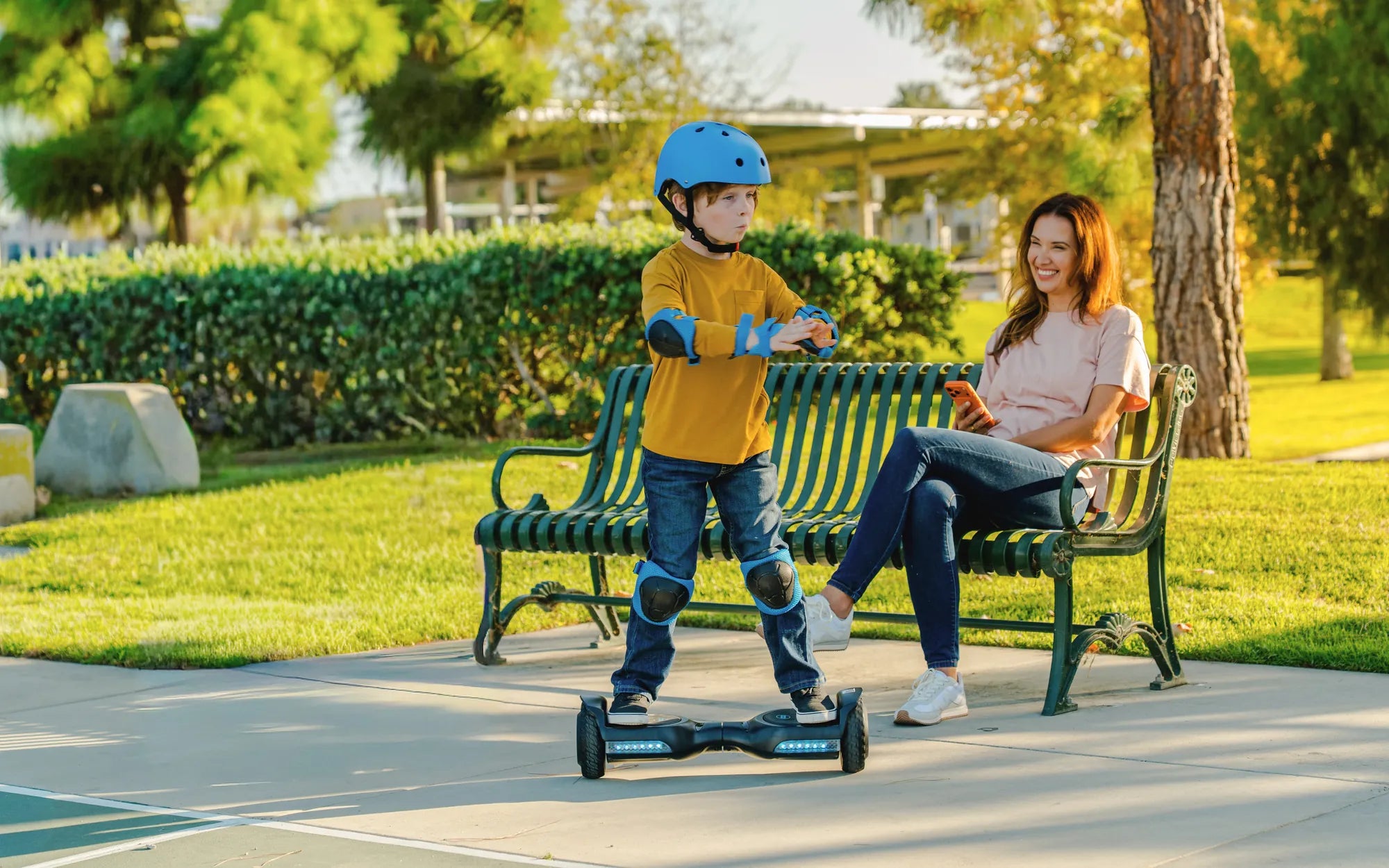
If you're tired of hearing the Bluetooth voice on your hoverboard every time you power it on or connect a device, you're not alone. Many riders find this feature more annoying than helpful. Fortunately, turning it off is easier than you might think. Follow this step-by-step guide to silence the Bluetooth voice and enjoy a smoother, quieter ride.
Why Disable the Bluetooth Voice on Your Hoverboard?
While the Bluetooth voice feature can be useful for beginners, it often becomes repetitive and unnecessary after a few uses. The constant announcements can be distracting, especially if you're riding in a quiet area or listening to music. Disabling the voice prompts allows you to focus on your ride without interruptions.
Step 1: Power On Your Hoverboard
Before making any adjustments, ensure your hoverboard is turned on. Most models require the device to be powered up to access the settings menu. Press and hold the power button until you hear the startup sound or see the LED lights activate.
Step 2: Locate the Bluetooth Button
Look for the Bluetooth button on your hoverboard. This is usually located near the power button or on the underside of the device. If you're unsure, refer to your hoverboard's manual for the exact location.
Step 3: Enter the Settings Mode
Press and hold the Bluetooth button for 5-10 seconds until you hear a beep or see a flashing light. This indicates that you've entered the settings mode. Some models may require a specific sequence of button presses, so consult your manual if this step doesn't work.
Step 4: Navigate to the Voice Settings
Once in settings mode, use the Bluetooth button to cycle through the options. Look for the voice or sound settings option. This may be indicated by a specific light pattern or voice prompt. Press the button to select this option.
Step 5: Disable the Bluetooth Voice
After selecting the voice settings, you'll typically have the option to turn the voice prompts on or off. Choose the "off" option and wait for a confirmation sound or light. If you don't hear or see anything, try pressing the button again to ensure the setting is saved.
Step 6: Exit the Settings Mode
To save your changes, exit the settings mode by pressing and holding the Bluetooth button for a few seconds. Your hoverboard may restart automatically, or you may need to power it off and on again.
Testing the Changes
After completing the steps, test your hoverboard by turning it on and connecting a Bluetooth device. If the voice prompts are still active, repeat the process or check your manual for model-specific instructions.
Troubleshooting Tips
If you're unable to disable the Bluetooth voice, ensure your hoverboard is fully charged and within range of any connected devices. Some models may require a firmware update to access certain settings. If all else fails, contact the manufacturer for assistance.
Enjoying a Quieter Ride
With the Bluetooth voice disabled, you can now enjoy a more peaceful ride. Whether you're cruising through the park or commuting to work, the absence of repetitive voice prompts will make your hoverboard experience even better.
Ready to take control of your hoverboard's settings? Follow these steps to silence the Bluetooth voice and ride in peace. No more annoying announcements—just smooth, uninterrupted fun!
Hoverboard for 250 Pounds: The Ultimate Guide to Choosing the Right One
Hoverboard Blinking Red: Causes, Fixes, and Safety Tips You Need to Know