



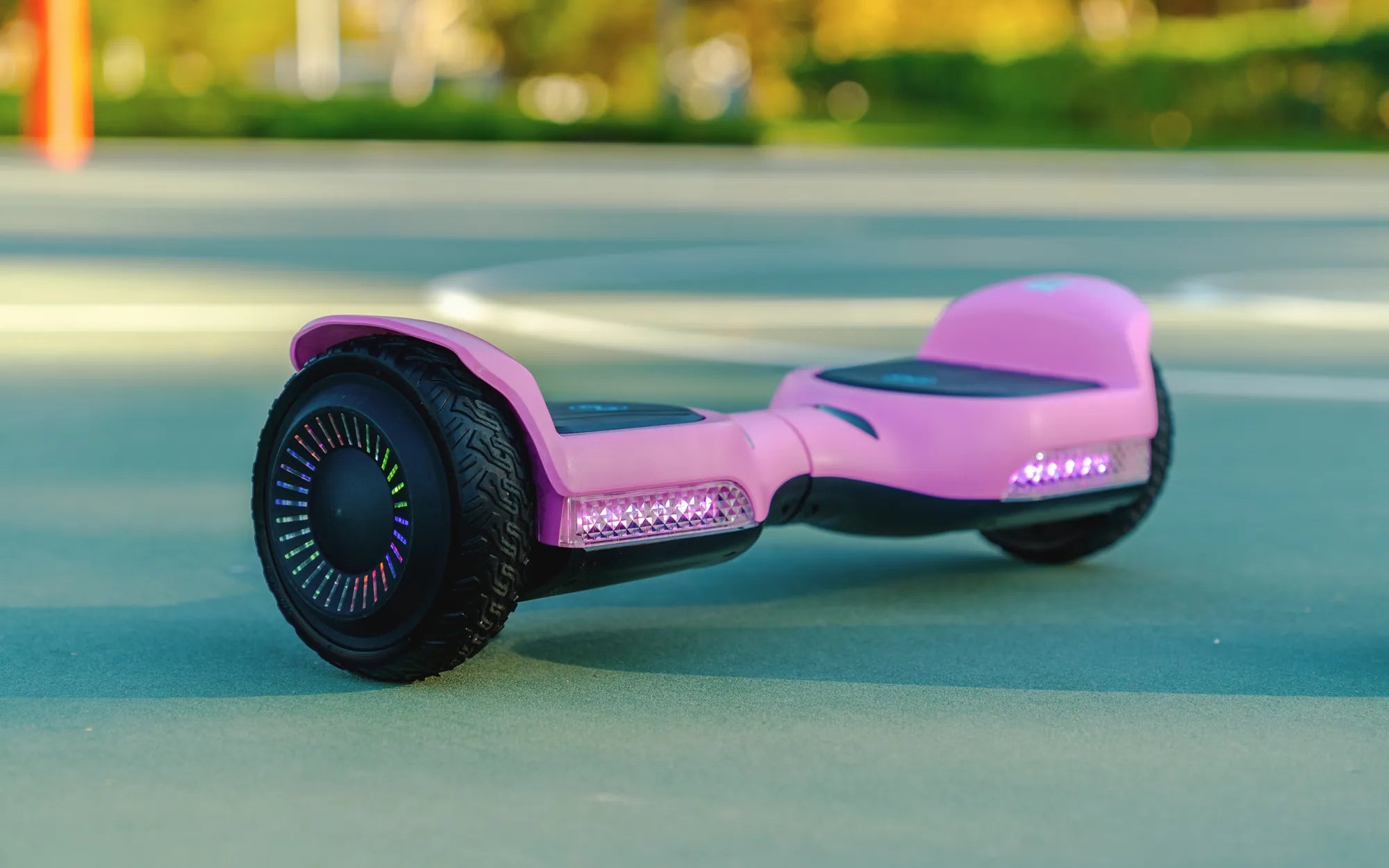
Ever wondered how hoverboards make it so easy for beginners to learn while still offering advanced features for experts? The secret lies in the hoverboard learning mode, a game-changing feature that ensures a smooth and safe riding experience. Whether you're a first-time rider or a seasoned pro, understanding this mode can transform how you use your hoverboard. Let’s dive into the details and uncover why this feature is a must-have.
What Is Hoverboard Learning Mode?
Hoverboard learning mode is a built-in feature designed to help beginners get accustomed to riding without the risk of sudden acceleration or loss of control. This mode limits the speed and responsiveness of the hoverboard, making it easier for new riders to balance and maneuver. It’s like training wheels for a bike but for a self-balancing scooter.
How Does Hoverboard Learning Mode Work?
When activated, hoverboard learning mode adjusts the sensitivity of the foot pads and reduces the maximum speed. Instead of reaching top speeds instantly, the hoverboard responds more gradually to shifts in weight. This gives riders more time to react and build confidence. Some models even include audio cues or LED indicators to signal when the rider is pushing the limits of the mode.
Benefits of Using Hoverboard Learning Mode
The advantages of this feature extend beyond just safety. Here’s why it’s a game-changer:
- Enhanced Safety: Reduces the risk of falls and injuries by limiting speed and responsiveness.
- Faster Learning Curve: Beginners can master balancing and steering more quickly.
- Customizable Experience: Some hoverboards allow adjustments to the learning mode’s intensity, catering to different skill levels.
- Ideal for All Ages: Kids and adults alike can benefit from a controlled introduction to hoverboarding.
How to Activate Hoverboard Learning Mode
Activating hoverboard learning mode varies by model, but the general steps are straightforward:
- Turn on the hoverboard and ensure it’s on a flat surface.
- Press and hold the power button for a few seconds until you hear a beep or see a flashing light.
- Some models require a specific sequence of button presses—check the user manual for details.
- Once activated, test the hoverboard at a slow speed to confirm the mode is working.
Tips for Mastering Hoverboard Learning Mode
To make the most of this feature, follow these tips:
- Start on a Soft Surface: Grass or carpet can provide extra cushioning if you fall.
- Wear Protective Gear: Helmets, knee pads, and elbow pads are essential for safety.
- Practice Basic Movements: Focus on starting, stopping, and turning before attempting higher speeds.
- Gradually Increase Difficulty: Once comfortable, switch to standard mode to explore the hoverboard’s full potential.
Common Mistakes to Avoid in Hoverboard Learning Mode
Even with training features, mistakes can happen. Avoid these pitfalls:
- Leaning Too Far Forward or Backward: This can cause sudden acceleration or stops, leading to falls.
- Ignoring Battery Life: Low battery can affect performance, even in learning mode.
- Skipping Protective Gear: Overconfidence can lead to unnecessary injuries.
- Rushing the Process: Take your time to build skills before disabling learning mode.
Advanced Features Beyond Hoverboard Learning Mode
Once you’ve mastered the basics, explore these advanced features:
- Speed Modes: Some hoverboards offer multiple speed settings for different terrains.
- Bluetooth Connectivity: Pair your hoverboard with an app for customized settings.
- LED Lights and Sound Effects: Personalize your ride with colorful lights and tunes.
- Off-Road Capabilities: Certain models are built for rough terrain, expanding your riding options.
Ready to take your hoverboard skills to the next level? Hoverboard learning mode is just the beginning. With practice and patience, you’ll be gliding like a pro in no time. Don’t just ride—master the art of hoverboarding with confidence and style!
Hoverboard Blue Light Stays On: Causes, Fixes, and Safety Tips
What Are Those Hoverboard Things? A Complete Guide to the Hottest Personal Transport Device