

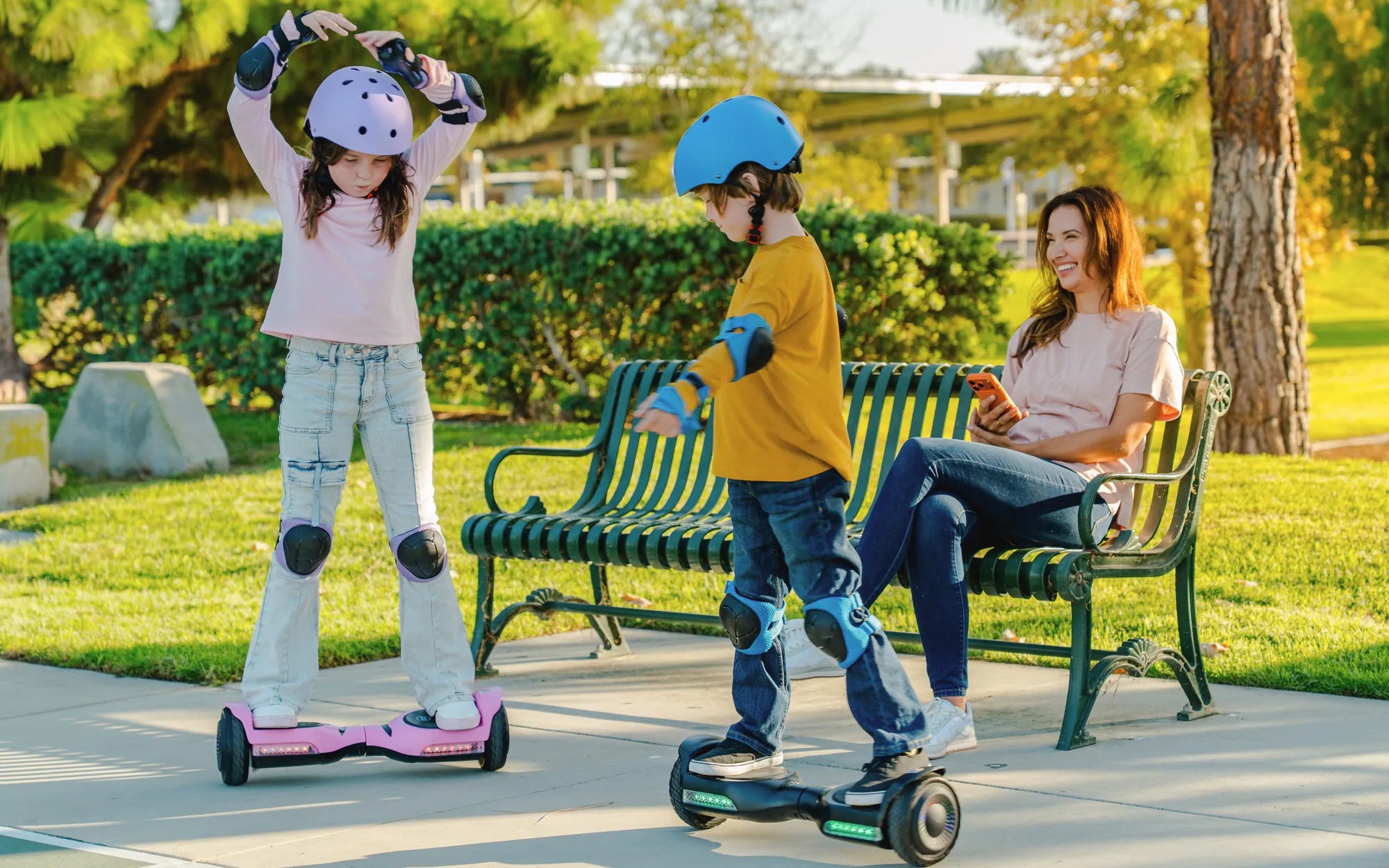
Is your hoverboard acting up? A faulty motherboard could be the culprit. Whether your ride won't power on, keeps disconnecting, or behaves erratically, replacing the motherboard might be the solution. This guide will walk you through everything you need to know about hoverboard motherboard replacement, from identifying the problem to installing a new board like a pro.
Signs Your Hoverboard Needs a Motherboard Replacement
Before diving into repairs, it's crucial to confirm that the motherboard is actually the issue. Watch for these telltale signs:
- Complete failure to power on despite a charged battery
- Inconsistent power delivery or sudden shutdowns
- Unresponsive controls or erratic movement
- Blinking error lights or unusual beeping sounds
- Burning smell or visible damage to the board
Tools You'll Need for the Replacement
Gather these essential tools before starting your hoverboard motherboard replacement:
- Phillips head screwdriver set
- Plastic pry tools or spudger
- Multimeter for testing
- Anti-static wrist strap (recommended)
- Replacement motherboard compatible with your model
Step-by-Step Hoverboard Motherboard Replacement Guide
Step 1: Safety First
Always disconnect the battery before working on any electrical components. Allow the hoverboard to sit for 10-15 minutes after disconnecting to discharge any remaining power.
Step 2: Accessing the Motherboard
Remove the outer shell by carefully unscrewing all visible screws. Use plastic tools to gently pry apart the housing if needed, being careful not to damage the plastic clips.
Step 3: Disconnecting Components
Take clear photos of all connections before disassembly. Methodically disconnect:
- Battery leads
- Motor connections
- Gyroscope and sensor wires
- LED lighting connections
Step 4: Removing the Old Motherboard
Unscrew the motherboard from its mounting points. Note any thermal pads or insulation that may need transferring to the new board.
Step 5: Installing the New Motherboard
Position the replacement board exactly as the old one was mounted. Reconnect all components according to your reference photos, double-checking each connection.
Step 6: Testing Before Final Assembly
Before replacing the housing, reconnect the battery and perform a basic power test. Check all functions including:
- Power button response
- LED indicators
- Basic balancing function (with wheels elevated)
Troubleshooting Common Installation Issues
If your hoverboard isn't working properly after motherboard replacement, try these fixes:
- Check all connections are secure and properly seated
- Verify battery voltage with a multimeter
- Ensure the gyroscope is properly calibrated
- Confirm motherboard compatibility with your model
Maintenance Tips to Extend Motherboard Life
Prevent future motherboard failures with these simple practices:
- Avoid exposing your hoverboard to moisture
- Store in a temperature-controlled environment
- Regularly check for loose connections
- Keep firmware updated when possible
With your new motherboard installed, you're ready to hit the pavement again! Regular maintenance and proper care will keep your hoverboard running smoothly for years to come. Remember, taking the time to properly diagnose issues and carefully perform repairs will save you money and frustration in the long run.
Best Self Balancing: The Ultimate Guide to Stability and Performance
Real Hoverboard 2025: The Future of Personal Transportation Is Here