



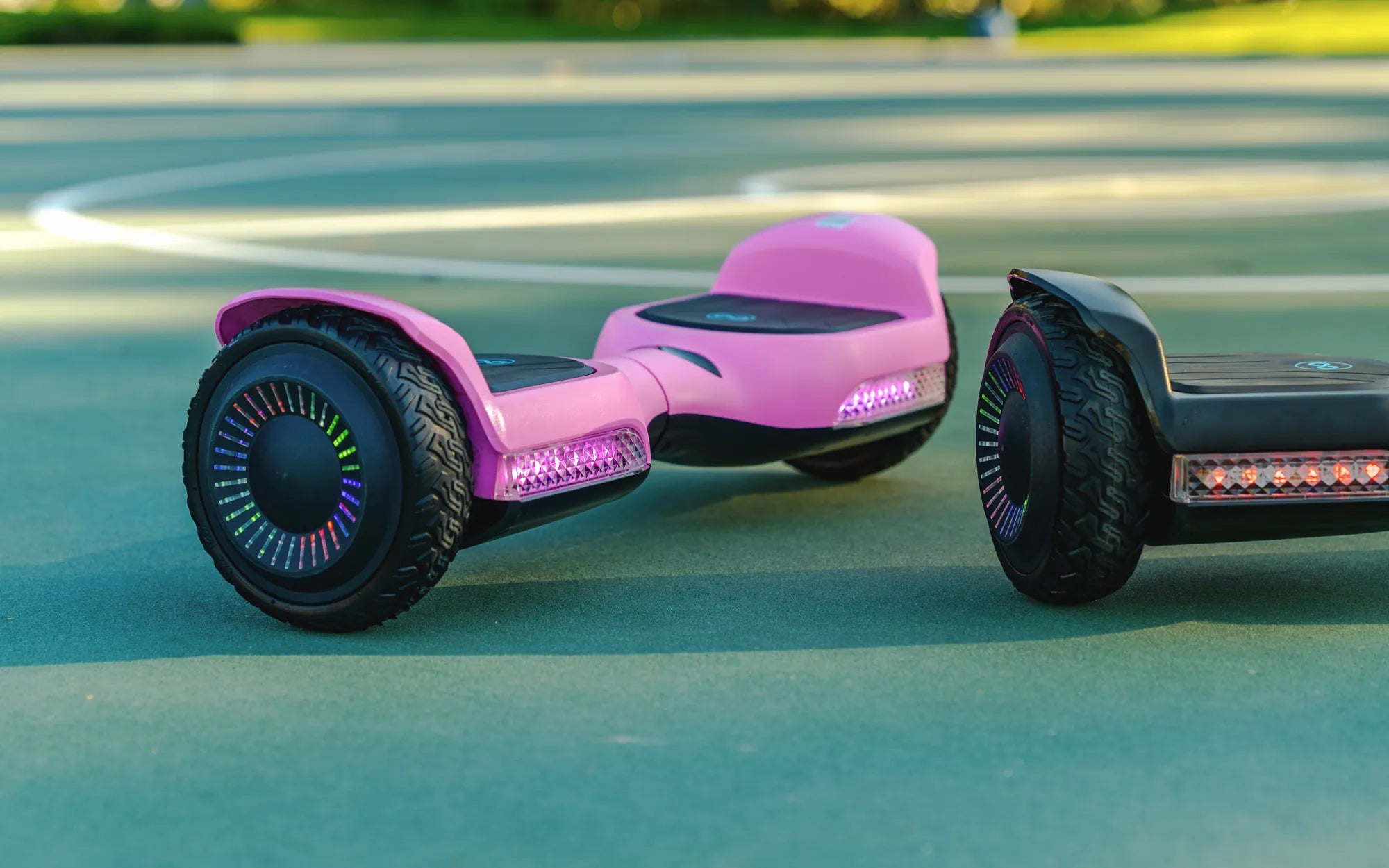
Ever wondered how to connect your hoverboard to Bluetooth and unlock its full potential? Whether you're a beginner or a seasoned rider, pairing your hoverboard with Bluetooth can enhance your experience with music, app controls, and more. Let’s dive into the step-by-step process to get your hoverboard connected in no time.
Why Connect Your Hoverboard to Bluetooth?
Connecting your hoverboard to Bluetooth opens up a world of possibilities. From playing your favorite tunes while riding to accessing advanced features through dedicated apps, Bluetooth connectivity can make your hoverboard smarter and more fun to use. Plus, it’s a great way to personalize your riding experience.
Step 1: Check Compatibility
Before attempting to connect, ensure your hoverboard has built-in Bluetooth capabilities. Not all models support this feature, so refer to your user manual or manufacturer’s website for confirmation. If your hoverboard doesn’t have Bluetooth, you may need an external adapter.
Step 2: Charge Your Hoverboard
A fully charged hoverboard ensures a smooth pairing process. Low battery levels can cause connectivity issues, so plug in your device and wait until it’s fully charged before proceeding.
Step 3: Turn On Bluetooth on Your Device
Enable Bluetooth on your smartphone, tablet, or other compatible device. Navigate to the settings menu, select "Bluetooth," and toggle it on. Make sure your device is discoverable.
Step 4: Power On Your Hoverboard
Turn on your hoverboard by pressing the power button. Most hoverboards emit a sound or light indicator when powered on, signaling they’re ready to pair.
Step 5: Enter Pairing Mode
Hold the Bluetooth button on your hoverboard (if available) until you hear a beep or see a flashing light. This indicates the hoverboard is in pairing mode. If your hoverboard doesn’t have a dedicated button, refer to the manual for instructions on activating pairing mode.
Step 6: Select Your Hoverboard on Your Device
On your smartphone or tablet, scan for available Bluetooth devices. Your hoverboard should appear in the list—select it to initiate the pairing process. Some models may require a PIN, typically "0000" or "1234."
Step 7: Confirm Connection
Once paired, you’ll hear a confirmation sound or see a steady light on your hoverboard. Your device will also display a "Connected" status. Test the connection by playing music or opening the hoverboard’s app (if applicable).
Troubleshooting Common Issues
If you encounter problems, try these fixes:
- Restart both your hoverboard and device.
- Ensure no other devices are interfering with the connection.
- Update your hoverboard’s firmware or app.
- Reset the Bluetooth connection and repeat the pairing process.
Maximizing Your Bluetooth Experience
Once connected, explore the features your hoverboard offers. Use apps to track speed, battery life, or customize LED lights. Some hoverboards even allow voice commands or remote control via Bluetooth.
Ready to take your hoverboard experience to the next level? Follow these steps, and you’ll be cruising to your favorite beats in no time. Don’t let a simple pairing process hold you back—unlock the full potential of your hoverboard today!
Hoverboard KG: The Ultimate Guide to Weight Limits and Performance
Attachment to Hoverboard: The Future of Personal Mobility and Fun