



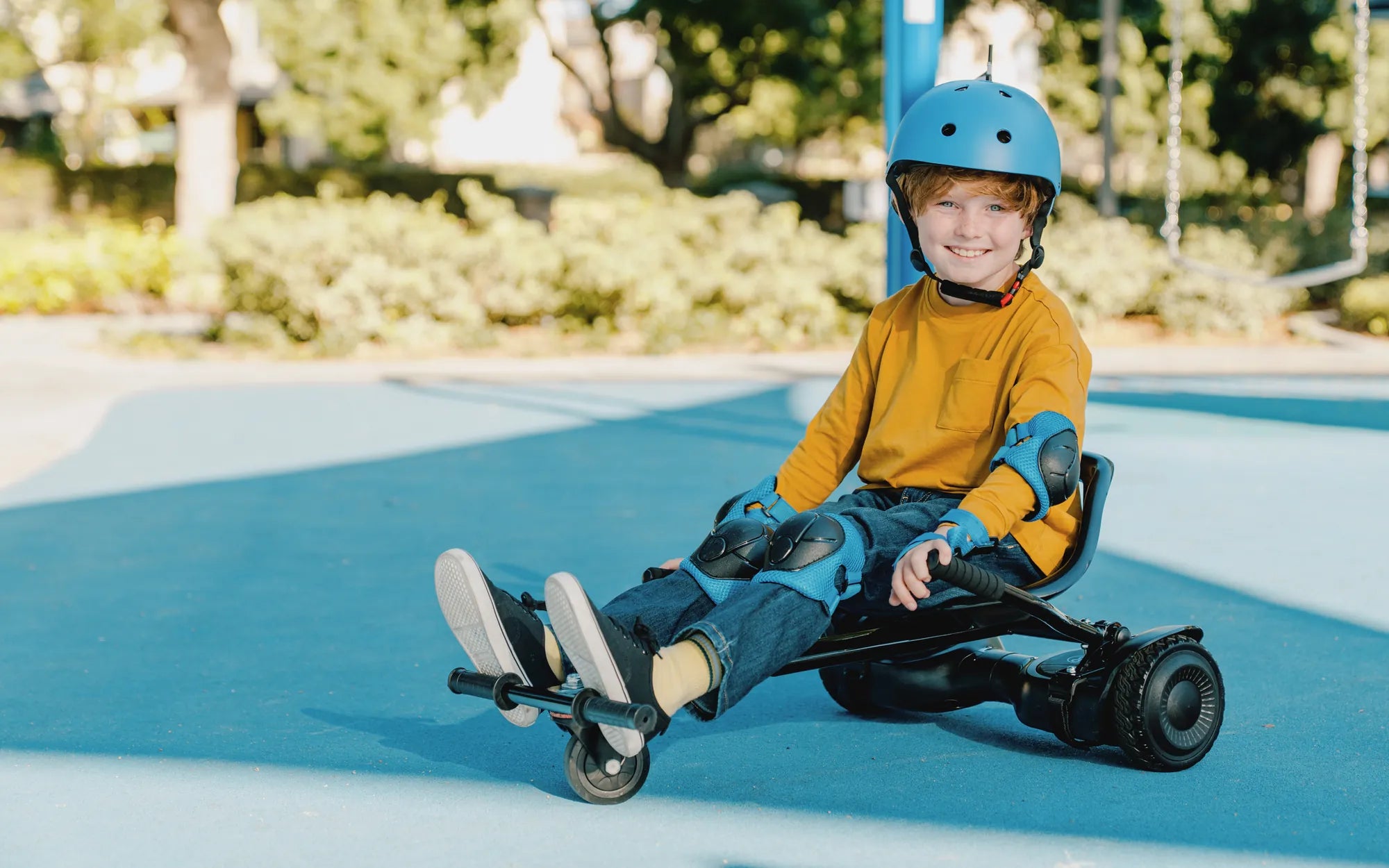
Ever wondered how to connect your hoverboard to Bluetooth and unlock its full potential? Whether you're a beginner or a seasoned rider, pairing your hoverboard with your smartphone or other devices can enhance your experience with music, app controls, and more. Let's dive into the step-by-step process to get you connected in no time.
Why Connect Your Hoverboard to Bluetooth?
Connecting your hoverboard to Bluetooth opens up a world of possibilities. From playing your favorite tunes while riding to accessing advanced features through dedicated apps, Bluetooth connectivity can take your hoverboard experience to the next level. Plus, it's a great way to personalize your ride and make it uniquely yours.
Step 1: Check Your Hoverboard's Bluetooth Compatibility
Before attempting to connect, ensure your hoverboard supports Bluetooth functionality. Most modern hoverboards come with built-in Bluetooth, but it's always good to double-check the user manual or manufacturer's specifications. If your hoverboard doesn't have Bluetooth, you may need an external adapter.
Step 2: Charge Your Hoverboard and Device
Make sure both your hoverboard and the device you're pairing (smartphone, tablet, etc.) are fully charged. A low battery can cause connectivity issues or interrupt the pairing process.
Step 3: Turn On Your Hoverboard's Bluetooth
Power on your hoverboard and locate the Bluetooth button or switch. This is usually found near the power button or on the underside of the board. Hold the Bluetooth button until you see a flashing light or hear a beep, indicating it's in pairing mode.
Step 4: Enable Bluetooth on Your Device
Go to the Bluetooth settings on your smartphone or tablet and turn on Bluetooth. Wait for your device to scan and detect your hoverboard. It should appear in the list of available devices, often labeled with the hoverboard's model name or a generic identifier like "Hoverboard-BT."
Step 5: Pair the Devices
Select your hoverboard from the list of available devices on your smartphone or tablet. If prompted, enter a pairing code (commonly "0000" or "1234"). Once connected, you'll hear a confirmation sound or see a solid light on your hoverboard.
Step 6: Test the Connection
Play a song or open the hoverboard's companion app (if available) to test the connection. If the audio plays through your hoverboard's speakers or the app recognizes the board, you're all set!
Troubleshooting Common Bluetooth Issues
If you're having trouble connecting, try these fixes:
- Restart both your hoverboard and the device.
- Move closer to the hoverboard to ensure a strong signal.
- Forget the device in your Bluetooth settings and re-pair.
- Update your hoverboard's firmware or the companion app.
Maximizing Your Bluetooth Hoverboard Experience
Once connected, explore the features your hoverboard offers. Many models allow you to adjust settings like speed limits, LED light patterns, and even track your riding stats through the app. Some hoverboards also support voice commands or remote control via Bluetooth.
Safety Tips for Bluetooth-Enabled Hoverboards
While enjoying your connected hoverboard, keep these safety tips in mind:
- Don't play music at high volumes while riding in traffic.
- Avoid distractions from your phone while riding.
- Keep your hoverboard's firmware updated for optimal performance.
- Disconnect Bluetooth when not in use to save battery.
Now that you know how to connect your hoverboard to Bluetooth, it's time to hit the streets in style! Whether you're cruising to your favorite playlist or fine-tuning your ride with advanced controls, Bluetooth connectivity adds a whole new dimension to your hoverboard adventures. Happy riding!
Best Hoverboard 10 Inch Wheels: The Ultimate Guide for Smooth Rides
Hoverboard with Pole: The Ultimate Guide to Modern Mobility