



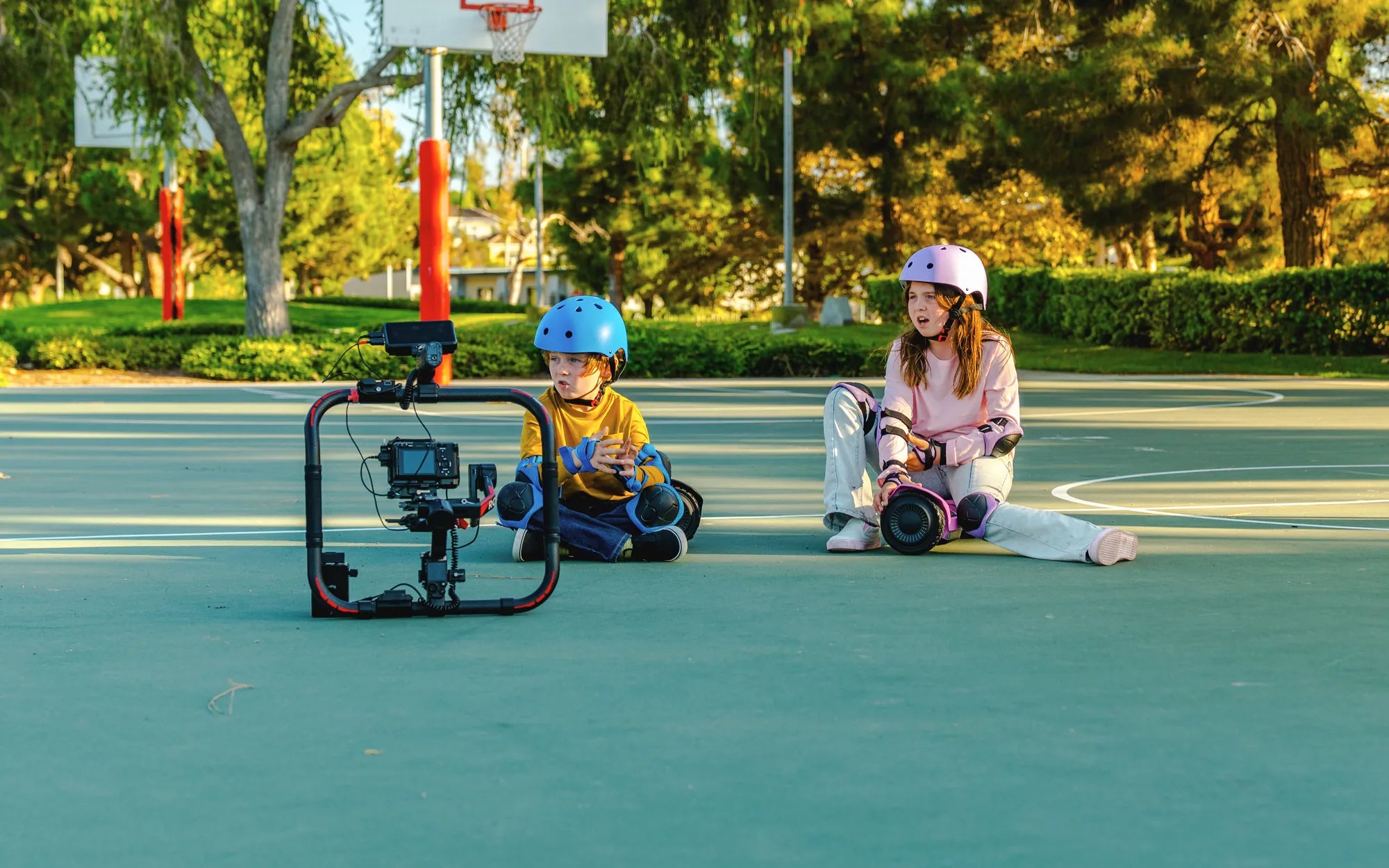
Hoverboards have evolved beyond just being a fun ride—they now come packed with features like Bluetooth connectivity, allowing you to enjoy music while cruising. If you've ever wondered how to use the Bluetooth on a hoverboard, you're in the right place. This guide will walk you through every step, from pairing your device to troubleshooting common issues.
Why Bluetooth on a Hoverboard Matters
Bluetooth-enabled hoverboards let you stream music wirelessly, turning your ride into a mobile party. Whether you're commuting or just having fun, this feature adds an extra layer of enjoyment. But before you can start jamming to your favorite tunes, you need to know how to set it up properly.
Step 1: Check Your Hoverboard's Bluetooth Compatibility
Not all hoverboards come with Bluetooth functionality. Before attempting to pair a device, ensure your model supports it. Check the user manual or look for a Bluetooth symbol on the hoverboard's control panel. If unsure, a quick online search of your hoverboard's specifications should clarify.
Step 2: Power On Your Hoverboard
Turn on your hoverboard by pressing the power button, usually located near the foot pads or under the board. Wait for the device to boot up completely. Some models emit a sound or light indicator when Bluetooth is ready to pair.
Step 3: Enable Bluetooth on Your Smartphone or Device
Open the Bluetooth settings on your smartphone, tablet, or other audio devices. Make sure Bluetooth is turned on and set to discoverable mode. This allows your hoverboard to detect the device.
Step 4: Pair Your Device with the Hoverboard
Scan for available devices in your Bluetooth settings. Look for your hoverboard's name, which is often something like "Hoverboard-BT" or similar. Select it to initiate pairing. Some hoverboards may require a default PIN, such as "0000" or "1234"—check your manual if prompted.
Step 5: Confirm the Connection
Once paired, you should hear a confirmation sound or see a notification on your device. Test the connection by playing a song. If the audio plays through the hoverboard's speakers, you're all set!
Troubleshooting Common Bluetooth Issues
If you encounter problems, try these fixes:
- No Sound? Ensure the volume is up on both your device and hoverboard.
- Connection Drops? Move closer to the hoverboard and avoid interference from other wireless devices.
- Can't Find the Hoverboard? Restart both the hoverboard and your Bluetooth device.
Maximizing Your Bluetooth Experience
For the best audio quality, keep your device within 30 feet of the hoverboard. Avoid crowded Wi-Fi areas, as they can interfere with Bluetooth signals. If your hoverboard supports it, consider using a high-quality audio file or streaming service for better sound.
Now that you know how to use the Bluetooth on a hoverboard, it's time to hit the streets with your favorite playlist. Whether you're riding solo or with friends, wireless music makes every journey more exciting. So power up, pair up, and enjoy the ride!
How Old Do I Have to Be to Ride a Hoverboard: A Complete Guide
What Does It Mean If Your Hoverboard Is Beeping: A Complete Guide