

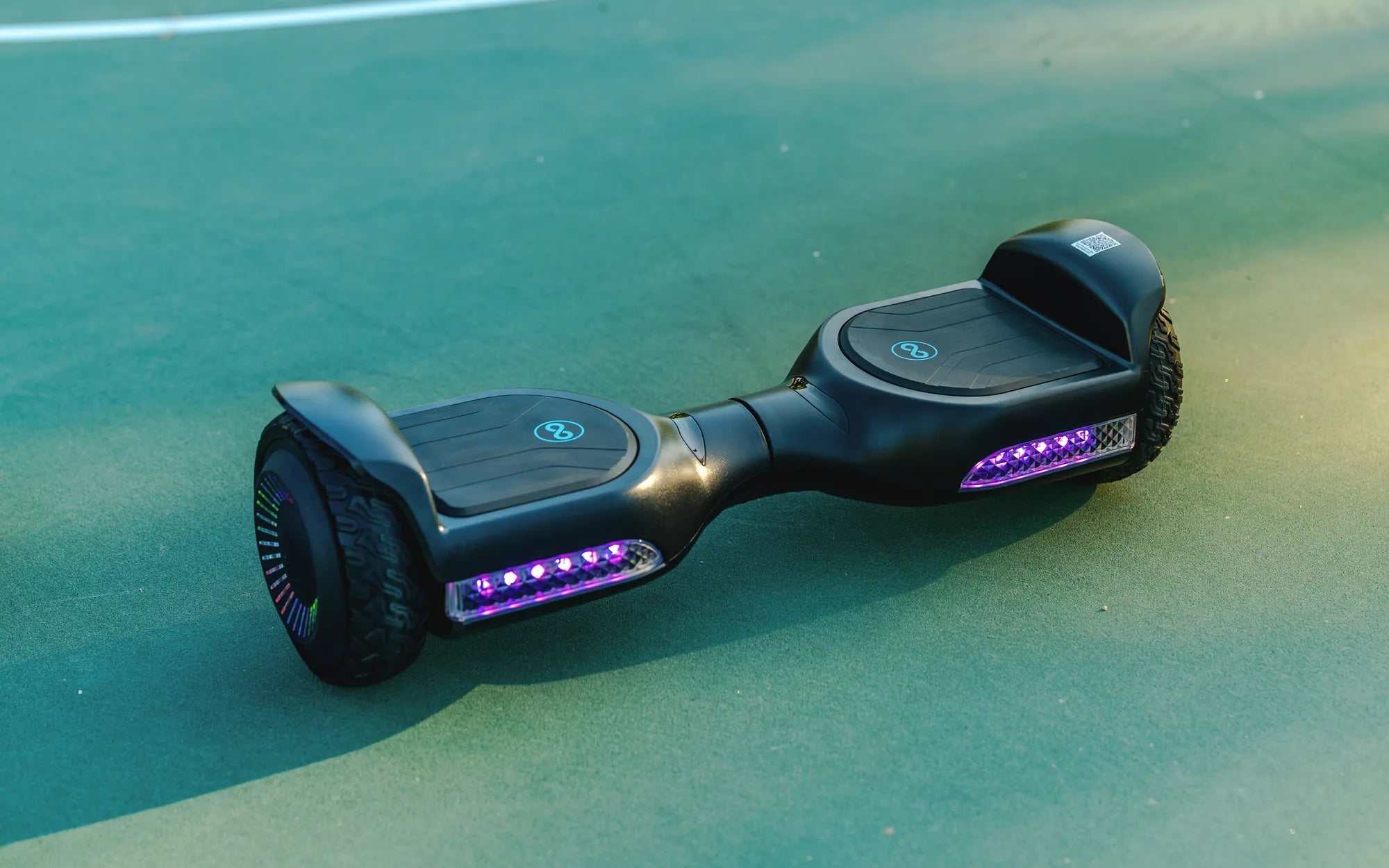
Ever wondered how to take your hoverboard experience to the next level? Bluetooth connectivity can unlock a world of possibilities, from playing your favorite tunes to customizing ride modes. Whether you're a tech enthusiast or a casual rider, learning how to Bluetooth your hoverboard is simpler than you think.
Why Connect Your Hoverboard to Bluetooth?
Bluetooth-enabled hoverboards offer a range of features that enhance your riding experience. You can play music through built-in speakers, adjust speed settings, monitor battery life, and even control LED lights—all from your smartphone. Connecting via Bluetooth ensures a seamless and wireless experience without the hassle of cords or adapters.
Step 1: Check Your Hoverboard's Compatibility
Not all hoverboards come with Bluetooth capabilities. Before attempting to pair, check your device's manual or specifications to confirm it supports Bluetooth. Most modern models include this feature, but older or budget-friendly options may not.
Step 2: Charge Your Hoverboard and Smartphone
Ensure both your hoverboard and smartphone are fully charged before starting the pairing process. A low battery can cause connectivity issues or interruptions during setup.
Step 3: Enable Bluetooth on Your Smartphone
Open your smartphone's settings and turn on Bluetooth. Make sure your device is discoverable to nearby gadgets. If you're unsure how to do this, refer to your phone's user guide for instructions.
Step 4: Turn On Your Hoverboard's Bluetooth Mode
Power on your hoverboard and locate the Bluetooth button, usually found near the power switch or on the control panel. Press and hold it until you see a flashing light or hear a beep, indicating the hoverboard is in pairing mode.
Step 5: Pair Your Devices
On your smartphone, scan for available Bluetooth devices. Your hoverboard should appear in the list—select it to initiate pairing. Some models may require a default PIN, such as "0000" or "1234," which you can enter if prompted.
Step 6: Test the Connection
Once paired, play a song or adjust settings through the hoverboard's companion app (if available) to confirm the connection is working. If you encounter issues, try restarting both devices and repeating the process.
Troubleshooting Common Bluetooth Issues
If your hoverboard won't connect, ensure it's within range (typically 30 feet) and free from interference. Other electronic devices, walls, or crowded Wi-Fi networks can disrupt the signal. Updating your smartphone's OS or the hoverboard's firmware may also resolve compatibility problems.
Maximizing Your Bluetooth Hoverboard Experience
Once connected, explore all the features your hoverboard offers. Customize LED light patterns, set speed limits, or use the app to track your riding stats. Some models even allow voice commands for hands-free control.
Ready to revolutionize your hoverboard rides? With Bluetooth connectivity, your device becomes more than just a mode of transportation—it's a high-tech companion for fun and functionality. Start pairing today and unlock the full potential of your hoverboard!
People Riding Hoverboard: The Future of Personal Transportation
How Do I Connect Bluetooth to My Hoverboard – A Step-by-Step Guide