



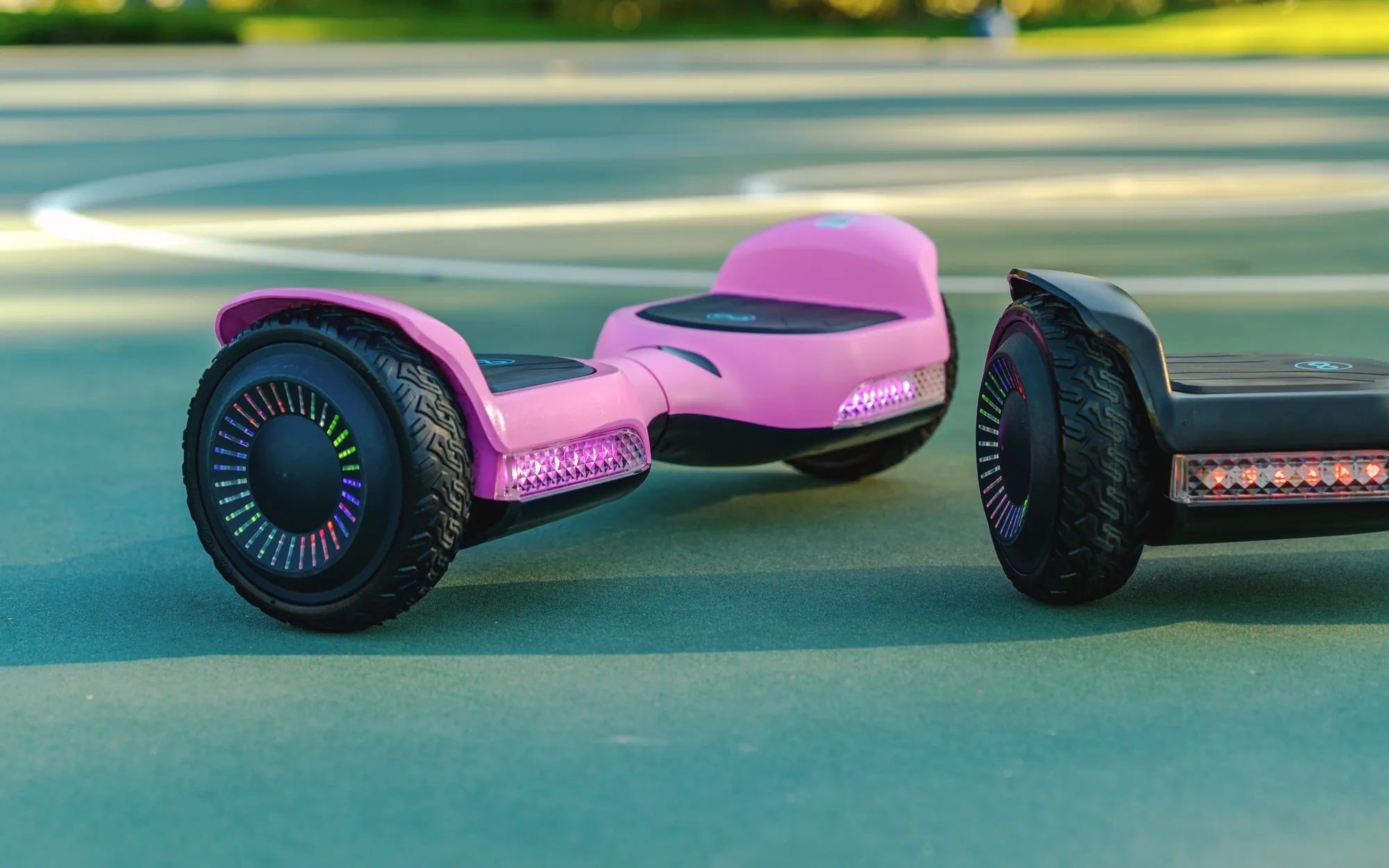
Unlock the Fun: Pair Your Device with Your Hoverboard
Hoverboards have evolved into smart, Bluetooth-enabled gadgets that let you play music, track performance, and even customize riding modes. If you've ever wondered how to Bluetooth to a hoverboard, you're in the right place. This guide will walk you through every step, ensuring a smooth and hassle-free connection.
Why Connect via Bluetooth?
Bluetooth connectivity opens up a world of possibilities for hoverboard enthusiasts. From streaming your favorite tunes to monitoring speed and battery life, pairing your device enhances the riding experience. Whether you're a beginner or a seasoned rider, mastering this feature is a game-changer.
Step 1: Check Your Hoverboard's Bluetooth Compatibility
Before diving into the pairing process, ensure your hoverboard supports Bluetooth. Most modern models come with this feature, but it's always wise to verify. Check the user manual or look for a Bluetooth icon on the hoverboard's control panel.
Step 2: Charge Your Hoverboard and Device
A low battery can disrupt the pairing process. Make sure both your hoverboard and the device you're connecting (smartphone, tablet, etc.) are adequately charged. This minimizes interruptions and ensures a stable connection.
Step 3: Enable Bluetooth on Your Device
Navigate to the settings menu on your smartphone or tablet and turn on Bluetooth. Ensure it's set to discoverable mode so your hoverboard can detect it. Keep the device close to the hoverboard for optimal signal strength.
Step 4: Activate Pairing Mode on Your Hoverboard
Power on your hoverboard and locate the Bluetooth button, usually found near the power button. Press and hold it until you see a flashing light or hear a beep, indicating pairing mode is active. Refer to your manual if you're unsure about the exact steps.
Step 5: Connect Your Device to the Hoverboard
On your device, scan for available Bluetooth devices. Your hoverboard should appear in the list, often labeled with a model number or generic name like "Smart Hoverboard." Select it to initiate pairing. Some models may require a PIN, typically 0000 or 1234.
Step 6: Confirm the Connection
Once paired, you'll receive a confirmation message on your device. Test the connection by playing music or checking the hoverboard's app (if available). If the audio plays through the hoverboard's speakers, you're all set!
Troubleshooting Common Bluetooth Issues
Not all pairings go smoothly. Here are some quick fixes for common problems:
- No Device Found: Restart both the hoverboard and your device, then retry.
- Weak Signal: Move closer to the hoverboard and avoid obstructions.
- Connection Drops: Ensure no other Bluetooth devices are interfering.
Maximizing Your Bluetooth Experience
Once connected, explore additional features like custom LED light patterns, speed adjustments, or ride statistics through dedicated apps. Keep your hoverboard's firmware updated for the latest enhancements and bug fixes.
Safety Tips for Bluetooth-Enabled Hoverboards
While enjoying your hoverboard's Bluetooth features, prioritize safety. Avoid distractions like loud music in busy areas, and always wear protective gear. Regularly check the hoverboard's battery and Bluetooth functionality to prevent unexpected issues.
Take Your Ride to the Next Level
Now that you know how to Bluetooth to a hoverboard, the possibilities are endless. Whether you're cruising to your favorite playlist or fine-tuning performance settings, this feature adds a new dimension to your ride. Get ready to glide smarter and enjoy every moment on your hoverboard!
New Hoverboard Price: What You Need to Know Before Buying
How to Make Your Hoverboard Stop Beeping: A Step-by-Step Guide