



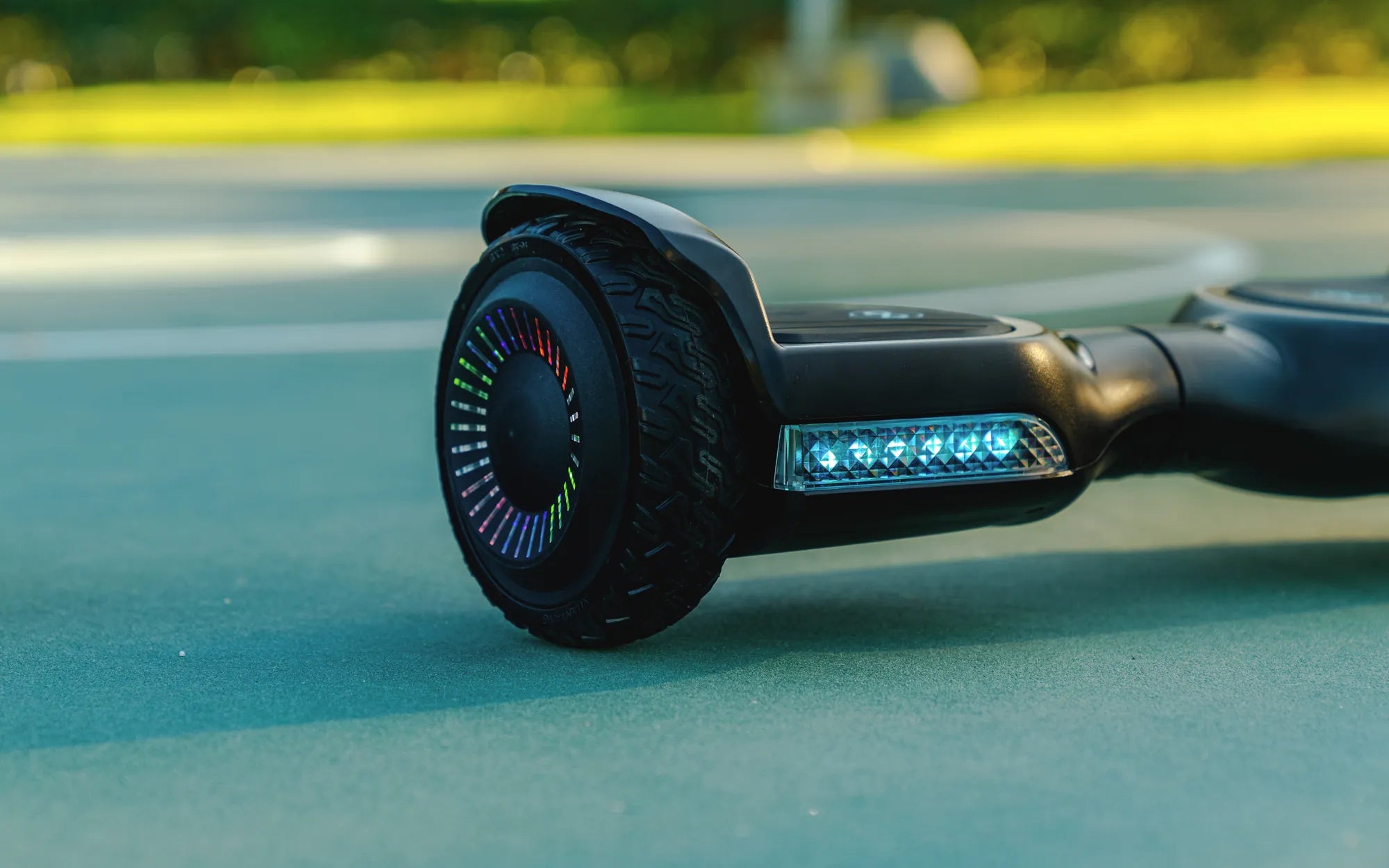
Ever wondered how to unlock the full potential of your Hoverstar hoverboard by connecting it to Bluetooth? Whether you want to play music or customize settings, pairing your device is easier than you think. Follow this step-by-step guide to get started and enjoy a seamless ride with your favorite tunes.
Understanding Bluetooth Connectivity on Hoverstar Hoverboards
Before diving into the pairing process, it's essential to understand how Bluetooth works on your hoverboard. Most modern Hoverstar models come equipped with built-in Bluetooth speakers, allowing you to connect smartphones, tablets, or other compatible devices. This feature enhances your riding experience by letting you listen to music or receive audio notifications while on the go.
Step 1: Prepare Your Hoverboard and Device
Start by ensuring your hoverboard is fully charged. A low battery can cause connectivity issues. Next, turn on your hoverboard by pressing the power button. Most models will emit a sound or light indicator to confirm they're active. On your smartphone or other Bluetooth-enabled device, enable Bluetooth in the settings menu.
Step 2: Activate Pairing Mode on Your Hoverboard
Locate the Bluetooth button on your hoverboard—usually found near the power button or on the underside. Press and hold it until you hear a beep or see a flashing light, indicating the hoverboard is in pairing mode. This typically takes 3-5 seconds.
Step 3: Connect Your Device
Open the Bluetooth settings on your smartphone or tablet. Look for your hoverboard's name in the list of available devices (often labeled as "Hoverstar" or a similar variant). Tap to connect, and wait for the confirmation tone or notification. Once paired, you can start playing music or adjusting settings.
Troubleshooting Common Bluetooth Issues
If your hoverboard isn't appearing in the Bluetooth list, try these fixes:
- Restart both your hoverboard and the device.
- Ensure the hoverboard is within 10 feet of your device.
- Check for interference from other electronic devices.
- Update your hoverboard's firmware if available.
Best Practices for a Stable Connection
To maintain a strong Bluetooth connection, keep your device close to the hoverboard and avoid obstacles like walls or large metal objects. Regularly charge both devices and clear any paired devices you no longer use to prevent conflicts.
Now that you know how to connect Bluetooth to your Hoverstar hoverboard, it's time to hit the streets with your favorite playlist. Whether you're cruising solo or showing off to friends, a wireless audio experience will take your rides to the next level. Happy hovering!
Hoverboard Won't Turn On or Charge: Troubleshooting Guide and Fixes
How to Get the Purple Hoverboard: A Complete Guide