



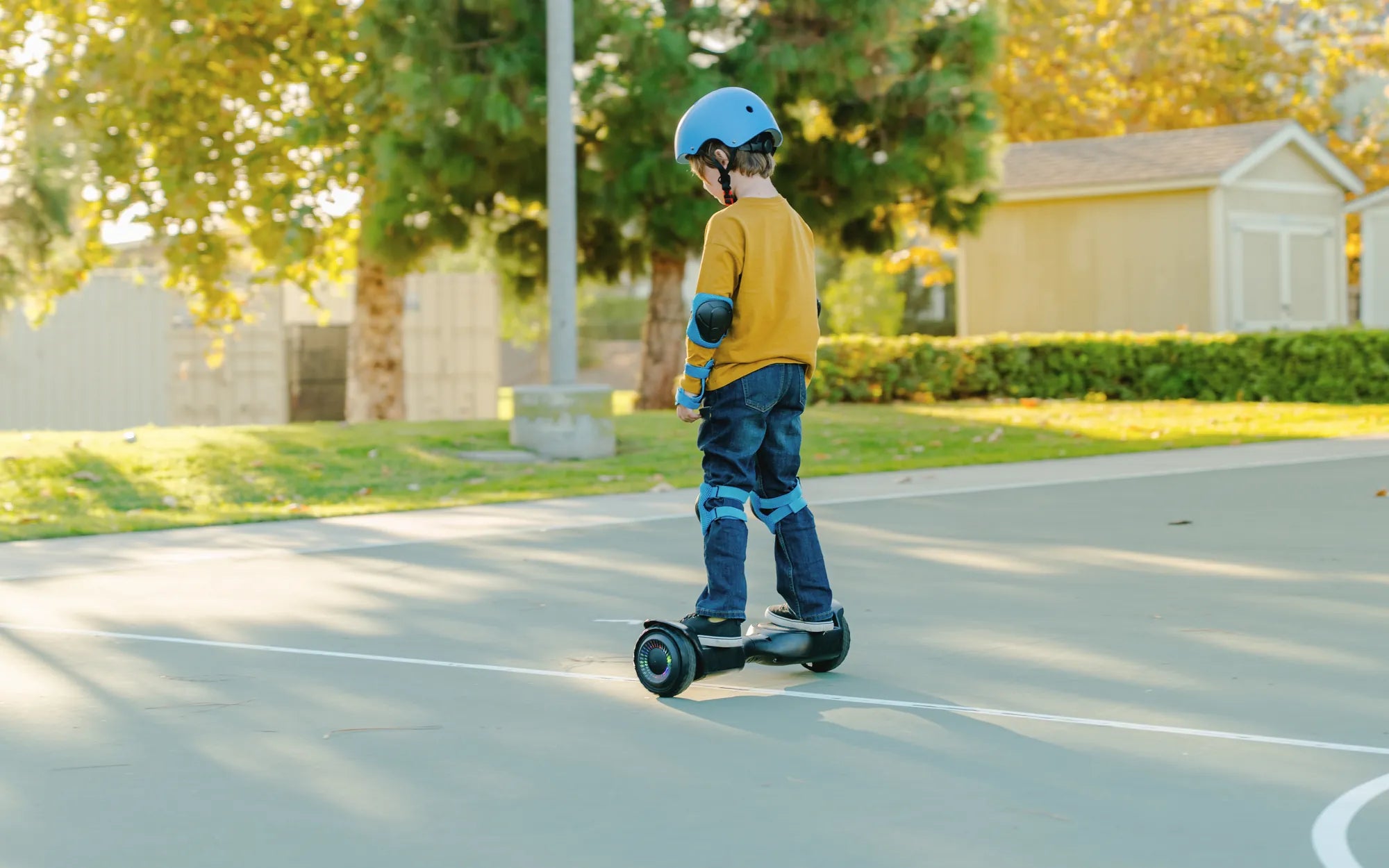
Ever wondered how to make your hoverboard even cooler? Connecting Bluetooth can transform your ride into a high-tech experience, letting you play music or customize settings wirelessly. Whether you're a tech newbie or a pro, this guide will walk you through the process step by step.
Why Connect Bluetooth to Your Hoverboard?
Bluetooth connectivity opens up a world of possibilities for your hoverboard. From playing your favorite tunes to adjusting settings via a mobile app, pairing your device can enhance your riding experience. Many modern hoverboards come with built-in speakers and app compatibility, making Bluetooth a must-have feature.
What You'll Need
Before you start, ensure you have the following:
- A hoverboard with Bluetooth capabilities
- A smartphone or tablet with Bluetooth enabled
- The manufacturer's app (if applicable)
- A fully charged hoverboard and device
Step-by-Step Guide to Connecting Bluetooth
Step 1: Power On Your Hoverboard
Turn on your hoverboard by pressing the power button. Wait for the indicator lights to show that it's ready for pairing. Some models may have a specific Bluetooth pairing mode—refer to your manual if unsure.
Step 2: Enable Bluetooth on Your Device
Open the Bluetooth settings on your smartphone or tablet. Make sure Bluetooth is turned on and your device is discoverable.
Step 3: Search for Available Devices
Scan for nearby Bluetooth devices. Your hoverboard should appear in the list, often labeled with its model name or a generic identifier like "Hoverboard_BT."
Step 4: Pair the Devices
Select your hoverboard from the list and follow any on-screen prompts to complete the pairing. Some models may require a PIN, typically "0000" or "1234."
Step 5: Test the Connection
Once paired, play a song or open the hoverboard's app to ensure the connection is stable. If the audio plays through the hoverboard's speakers, you're all set!
Troubleshooting Common Issues
Problem: Hoverboard Not Appearing in Bluetooth List
Solution: Ensure your hoverboard is in pairing mode. Restart both the hoverboard and your device, then try again.
Problem: Connection Drops Frequently
Solution: Keep your device close to the hoverboard and avoid interference from other wireless devices. Updating your hoverboard's firmware may also help.
Problem: No Sound from Speakers
Solution: Check the volume settings on both your device and the hoverboard. Ensure the hoverboard's speakers are not muted.
Tips for a Better Bluetooth Experience
- Keep your hoverboard and device within 30 feet for a stable connection.
- Charge both devices fully before pairing to avoid interruptions.
- Update your hoverboard's firmware regularly for optimal performance.
Ready to take your hoverboard to the next level? With Bluetooth connected, you can cruise in style while enjoying your favorite music or customizing your ride settings. Follow these steps, and you'll be paired up in no time!
Hoverboard Top Ten: The Ultimate Guide to Choosing the Best
How to Hook Up Hoverboard to Bluetooth: A Step-by-Step Guide