



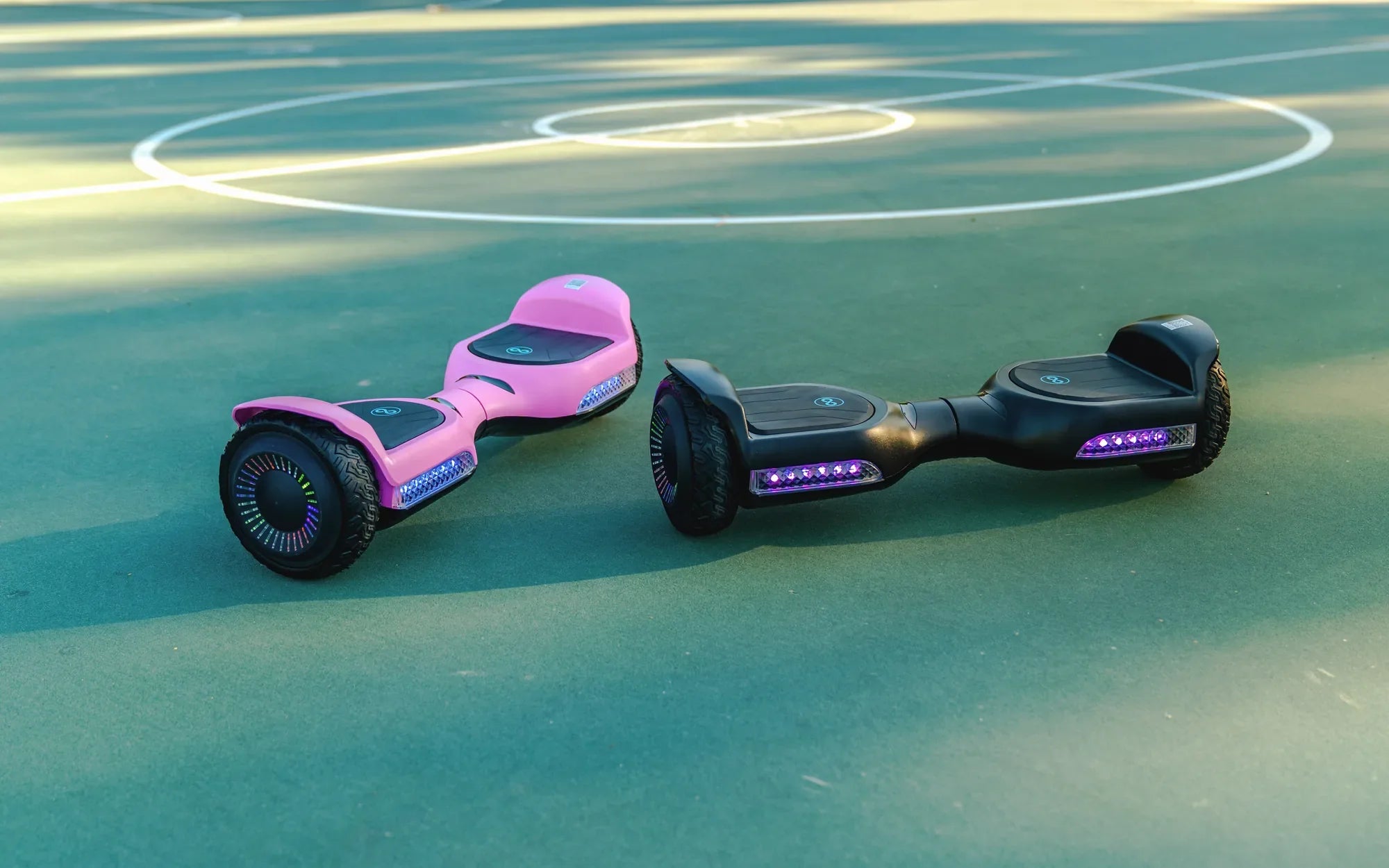
Is your hoverboard acting up? Whether it's unresponsive, flashing error lights, or just not working as smoothly as it used to, a reset might be the solution you need. Resetting your hoverboard can resolve many common issues, restoring it to its factory settings and ensuring a fresh start. In this guide, we'll walk you through the process step by step, so you can get back to gliding effortlessly in no time.
Why You Might Need to Reset Your Hoverboard
Hoverboards are fun and convenient, but like any electronic device, they can encounter problems. Here are some common reasons why you might need to reset your hoverboard:
- Unresponsive controls: If your hoverboard isn't responding to your commands, a reset can help.
- Error lights: Flashing or solid error lights often indicate a problem that a reset can fix.
- Battery issues: If your hoverboard isn't holding a charge or powering on, a reset might resolve the issue.
- Software glitches: Sometimes, the hoverboard's software can freeze or malfunction, requiring a reset.
Step-by-Step Guide to Resetting Your Hoverboard
Follow these steps to reset your hoverboard safely and effectively:
Step 1: Turn Off the Hoverboard
Before attempting any reset, ensure your hoverboard is turned off. Press and hold the power button until the device powers down completely.
Step 2: Locate the Reset Button
Most hoverboards have a small reset button, usually located near the charging port or under the footpad. Check your user manual if you're unsure where to find it.
Step 3: Press and Hold the Reset Button
Using a paperclip or a similar tool, press and hold the reset button for about 5-10 seconds. You may need to use some force, but be gentle to avoid damaging the button.
Step 4: Wait for the Hoverboard to Reset
After releasing the reset button, wait a few moments for the hoverboard to complete the reset process. You may hear a beep or see the lights flash, indicating the reset was successful.
Step 5: Turn the Hoverboard Back On
Press the power button to turn the hoverboard back on. It should now be restored to its factory settings.
Additional Troubleshooting Tips
If resetting your hoverboard doesn't solve the problem, try these additional troubleshooting steps:
- Check the battery: Ensure the battery is fully charged and properly connected.
- Inspect the wheels and sensors: Dirt or debris can interfere with the hoverboard's performance.
- Update the firmware: Some hoverboards allow firmware updates to fix bugs and improve performance.
Safety Precautions When Resetting Your Hoverboard
Resetting your hoverboard is generally safe, but it's important to follow these precautions:
- Always turn off the hoverboard before attempting a reset.
- Use the correct tools to avoid damaging the reset button.
- Avoid resetting the hoverboard while it's charging.
- If you're unsure about any step, consult the user manual or contact customer support.
Now that you know how to reset your hoverboard, you can tackle common issues with confidence. Whether it's a minor glitch or a more persistent problem, a reset can often get your device back on track. So, power up, hit the reset button, and enjoy a smooth ride once again!
Boy Riding Hoverboard: The Ultimate Guide to Fun and Safety
Hoverboard Means: The Future of Personal Transportation