



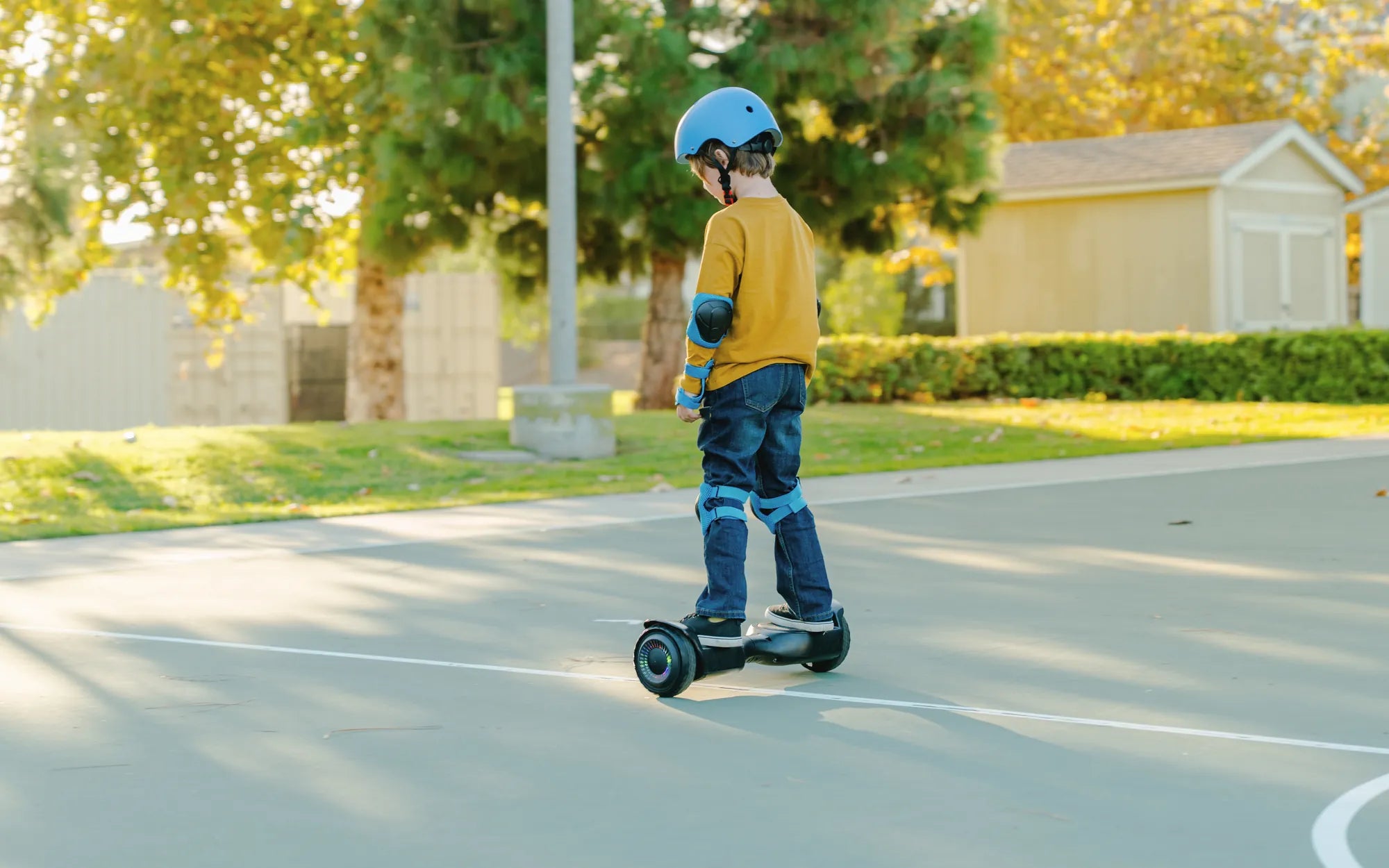
Hoverboards are a fun and convenient way to get around, but like any electronic device, they can sometimes malfunction. If your hoverboard is acting up, a reset might be all it needs to get back on track. Whether it's unresponsive, beeping incessantly, or not balancing properly, this guide will walk you through the steps to reset your hoverboard safely and effectively.
Why Would You Need to Reset a Hoverboard?
Before diving into the reset process, it's important to understand why a hoverboard might need resetting. Common issues include:
- Unresponsiveness: The hoverboard doesn't turn on or respond to commands.
- Beeping Sounds: Continuous beeping may indicate a calibration or battery issue.
- Balance Problems: The hoverboard tilts to one side or doesn't stay level.
- Connection Errors: Bluetooth or app connectivity issues may require a reset.
Resetting your hoverboard can often resolve these problems by restoring factory settings and recalibrating the internal sensors.
Step-by-Step Guide to Resetting a Hoverboard
Follow these steps to reset your hoverboard:
Step 1: Power Off the Hoverboard
Ensure the hoverboard is turned off. If it's unresponsive, press and hold the power button for at least 10 seconds to force a shutdown.
Step 2: Locate the Reset Button
Most hoverboards have a small reset button, usually located near the charging port or under a rubber cover. Use a paperclip or a similar tool to press it.
Step 3: Press and Hold the Reset Button
Press and hold the reset button for about 5-10 seconds. You may hear a beep or see the lights flash, indicating the reset is in progress.
Step 4: Wait for the Hoverboard to Reboot
After releasing the reset button, wait a few moments for the hoverboard to reboot. The lights should stabilize, and the hoverboard should power on normally.
Step 5: Recalibrate the Hoverboard
If the hoverboard still has balance issues, place it on a flat surface and follow the manufacturer's calibration instructions. This usually involves pressing specific buttons in a sequence.
Additional Troubleshooting Tips
If resetting doesn't solve the problem, try these additional steps:
- Check the Battery: Ensure the hoverboard is fully charged before attempting a reset.
- Inspect for Physical Damage: Look for any visible damage to the wheels, sensors, or wiring.
- Update Firmware: If your hoverboard has a companion app, check for firmware updates.
Safety Precautions When Resetting a Hoverboard
Always prioritize safety when handling electronic devices:
- Avoid resetting the hoverboard while it's charging.
- Keep the hoverboard away from water or damp surfaces.
- If you're unsure about any step, consult the user manual or contact customer support.
By following these steps, you can often restore your hoverboard to its optimal performance. If problems persist, it may be time to seek professional repair or replacement.
Don't let a malfunctioning hoverboard ruin your ride! With these simple reset steps, you can quickly troubleshoot common issues and get back to gliding smoothly. Whether it's a minor glitch or a more persistent problem, a reset is often the quickest fix to get your hoverboard back in action.
Why Is It Called a Hoverboard? The Fascinating History Behind the Name
Why Is It Called a Hoverboard? The Fascinating History Behind the Name