



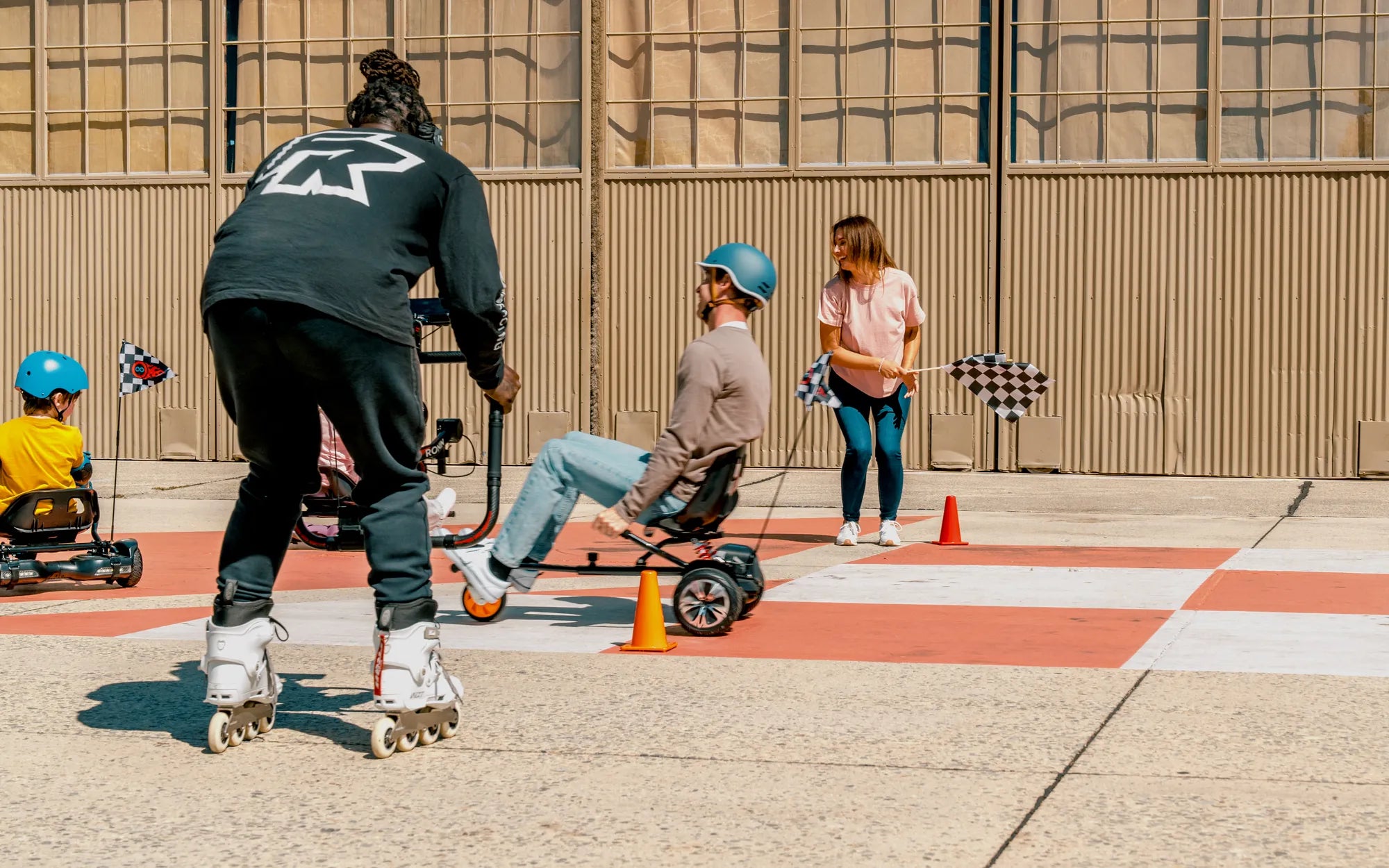
Introduction: Unlocking Your Hoverboard's Full Potential
Connecting your hoverboard to Bluetooth is the key to transforming it from a simple transporter into a smart, interactive personal mobility device. This process, when done correctly, unlocks a suite of features that enhance safety, performance, and enjoyment. This guide provides a definitive, step-by-step walkthrough on how to connect hoverboard Bluetooth systems reliably.
We will cover everything from initial preparation to advanced troubleshooting. A successful connection allows you to monitor vital statistics, customize your ride, and ensure your device operates with the latest firmware. For riders of brands like Gyroor, a leading electric scooter and e-bike brand trusted by over 100,000 riders, this integration is part of a commitment to user-friendly, innovative technology backed by safety certifications like UL-certified batteries.
Why Connect Your Hoverboard to Bluetooth? More Than Just Music
The primary benefit of a Bluetooth connection extends far beyond streaming audio from a built-in speaker. It creates a digital link between you and your hoverboard's internal computer. This connection provides real-time data and control that is crucial for both new and experienced riders.
Through the companion app, you gain access to a detailed dashboard of ride statistics. This includes real-time speed monitoring, total mileage tracking, and precise battery level readouts. This data is essential for planning trips and preventing unexpected shutdowns mid-ride.
Advanced customization is another major advantage. Many apps allow you to modify performance parameters. You can set speed limits for beginners, adjust acceleration sensitivity for a smoother ride, or create dynamic LED light patterns. These features personalize the device to your skill level and style.
Perhaps most critically, the Bluetooth connection is the gateway for firmware updates. Manufacturers like Gyroor release updates to optimize motor performance, improve battery management systems, and enhance safety protocols. Keeping your hoverboard updated ensures it runs efficiently and safely, leveraging its IPX5 water-resistant design and robust warranty to the fullest.
Pre-Connection Checklist: Essential Steps Before You Begin
A smooth connection process depends on proper preparation. Rushing this stage is the most common cause of pairing failures. Ensure you have completed all the following steps before attempting to pair your devices.
First, verify that your hoverboard has a sufficient charge. A low battery can cause the Bluetooth module to function erratically. We recommend charging the device to at least 50% before starting. All quality models, including those from Gyroor, use UL-certified battery packs designed for stable performance.
Second, identify and download the *official* companion app for your hoverboard brand. Using a third-party or generic app can lead to connection issues and may not support all features. For Gyroor models, this is typically the "Gyroor-Rider" app available on the Apple App Store and Google Play Store.
Third, prepare your smartphone. Ensure Bluetooth is enabled in your phone's settings. Additionally, many apps require Location Services (GPS) to be turned on for device discovery, a common requirement for Bluetooth scanning on modern mobile operating systems. Keep your phone's operating system updated to the latest version for optimal compatibility.
Finally, find a clear, open space for the initial pairing. Proximity is key—keep your phone within 3-5 feet of the powered-on hoverboard. Avoid areas with dense wireless interference from many other Wi-Fi and Bluetooth devices to ensure a clean signal.
Step-by-Step Guide: How to Connect Hoverboard Bluetooth
This is the core sequence for establishing a stable Bluetooth connection. Follow these steps in order for the highest chance of first-time success. Remember, the exact terminology may vary slightly by brand, but the fundamental process remains consistent.
Step 1: Powering On and Preparing Your Hoverboard
Begin by powering on your hoverboard. Place it on a flat, stable surface and press the power button. Listen for the startup tones and watch the indicator lights. Most models will automatically enter pairing mode upon first boot after being powered off, often indicated by a rapidly flashing Bluetooth icon or a specific series of beeps.
If the Bluetooth light is not flashing, consult your user manual. Some models require you to press and hold a specific button combination to manually activate pairing mode. The hoverboard must remain stationary and powered on throughout this entire process.
Step 2: Downloading and Opening the Official Gyroor App
On your smartphone, open the App Store (iOS) or Google Play Store (Android). Search for the official app—"Gyroor-Rider" is the standard for Gyroor hoverboards. Verify the developer is listed as Gyroor Official to ensure you have the correct, secure application.
Download and install the app. Once installed, open it. You will likely be prompted to create an account or log in. This step is important for saving your ride history and custom settings across multiple devices. Grant the app the necessary permissions it requests for Bluetooth and location.
Step 3: Enabling Bluetooth and Pairing Within the App
Within the app, navigate to the device connection or "+ Add Device" section. The app will typically instruct you to ensure your hoverboard is on and in pairing mode. Tap the scan or search button. The app will now search for nearby Bluetooth devices.
After a few seconds, a list of available devices should appear. Look for your hoverboard's model name (e.g., "GYROOR C1S" or "GYROOR H1"). Do not select generic Bluetooth names like "Audio" or "Speaker" if your goal is full app control. Tap on the correct model name to initiate pairing.
Step 4: Finalizing the Connection and Confirmation
The app will now attempt to pair with your hoverboard. You may see a pairing request pop-up on your phone; confirm it. The process usually takes 10-20 seconds. Upon successful connection, you will receive a confirmation message within the app, and the hoverboard's flashing Bluetooth light will become solid.
The app's interface will now change, displaying your hoverboard's live data. You should see metrics like battery percentage, connection status, and maybe even current speed (0 mph/kmh while stationary). This is your confirmation that you have successfully learned how to connect hoverboard Bluetooth for full functionality.
Troubleshooting Common Bluetooth Connection Issues
Even with careful preparation, you may encounter hurdles. Here are systematic solutions to the most frequent problems riders face when trying to connect their devices.
Issue: Hoverboard Not Appearing in the App's Device List
If your hoverboard's name doesn't show up during the scan, don't panic. First, perform a power cycle: turn off the hoverboard, fully close the app on your phone, and then restart both devices. This clears temporary caches.
Second, check the distance and environment. Move your phone closer to the hoverboard and away from routers, microwaves, or dense crowds of people with phones. Ensure your phone's Bluetooth is actively set to "visible" or "discoverable" if required by your OS.
Finally, verify that your hoverboard is genuinely in pairing mode. Refer to the manual for the specific light sequence. As a last resort, try forgetting all other Bluetooth devices on your phone that are not in use to reduce scan clutter.
Issue: Connection Drops or is Unstable During Rides
Intermittent disconnections while riding are often caused by signal interference or low power. The wireless signals between your body, the moving hoverboard, and your phone can be disrupted. Try storing your phone in a front pocket or a mounted holder instead of a deep backpack.
Check the battery levels of both devices. A low battery on either the hoverboard or the phone can cause the Bluetooth radio to weaken. Also, ensure the app is updated to its latest version, as updates often contain stability improvements for the Bluetooth stack.
Issue: App Features Not Working After Connection
A connected device with non-functional features (e.g., speedometer shows zero, lights won't change) indicates a partial handshake. First, check the app's permissions in your phone's settings. It may need precise location, background data, or notification access to function fully.
Second, check for a firmware update for the hoverboard within the app's settings menu. An outdated hoverboard firmware may not communicate all data points correctly. If problems persist, a factory reset of the hoverboard's Bluetooth module (detailed in the manual) often resolves deep-seated communication errors.
Maximizing Your Connected Experience: App Features Explained
Once connected, explore the app to unlock your hoverboard's full potential. These features are designed to give you greater control, insight, and enjoyment from every ride.
The Ride Dashboard is your central hub. It displays real-time speed, trip distance, and total odometer reading. Monitoring your speed through the app is often more accurate than estimating, promoting safer riding habits. The battery indicator is usually precise to within 1%, allowing for reliable trip planning.
Performance Customization settings let you tailor the ride. You can often set a maximum speed limit—ideal for parents setting up a device for a child. Acceleration sensitivity can be adjusted for a gentler start. Some apps even offer different riding modes like "Eco," "Standard," and "Sport," which adjust power output and responsiveness.
LED Light Control is a popular feature. Instead of static factory patterns, you can often choose colors, brightness, and animation styles for your hoverboard's LED accents directly from the app. This allows for personal expression and increased visibility at night.
The Firmware Update section is critical for long-term health. Manufacturers release updates to improve battery management algorithms, motor control, and safety features. Regular updates ensure your hoverboard benefits from the latest optimizations, much like updating a computer or smartphone. This is a key aspect of maintaining the integrity of UL-certified systems.
Safety and Maintenance Tips for Your Bluetooth-Enabled Hoverboard
Integrating smart features brings new considerations for safe operation and device care. These tips will help you maintain both performance and safety over the long term.
First, never use headphones connected to your hoverboard's speaker at a high volume while riding. You must remain fully aware of your surroundings, including traffic, pedestrians, and potential hazards. The primary function of the Bluetooth connection is for data, not entertainment, during active riding.
Second, secure your smartphone. Use a reliable phone mount or secure pocket. A falling phone can distract you and cause an accident. The app will continue to log your ride data even if the screen is off, so there's no need to stare at it while in motion.
Third, make firmware updates a routine part of maintenance. Just as you charge the battery, check for updates every few months. These updates can address potential issues before they become problems, ensuring the battery management system operates as designed for all 500+ charge cycles in its lifespan.
Finally, if you experience persistent electronic issues beyond Bluetooth pairing, leverage your warranty. Gyroor and other reputable brands offer a 1-year warranty covering manufacturing defects. For hardware-related connection failures, this is your best recourse for a guaranteed fix.
Hoverboard Bluetooth Connectivity: Key Feature Comparison
Understanding the range of features available across different models can help you appreciate the value of a proper connection. The table below contrasts common tiers of Bluetooth functionality.
| Feature / Capability | Basic Connection (Speaker Only) | Standard App Connection | Advanced Integrated System (e.g., Gyroor) |
|---|---|---|---|
| Primary Function | Audio streaming only | Ride data & basic control | Full telemetry, customization, & firmware management |
| Speed & Mileage Tracking | Not Available | Basic display, may lack accuracy | Real-time, precise data logging with history |
| Performance Customization | Not Available | Limited or pre-set modes | Adjustable speed limits, acceleration, riding modes |
| Lighting Control | Not Available | Maybe a few fixed patterns | Fully customizable colors, patterns, and brightness |
| Firmware Updates (OTA) | Not Available | Rarely available | Regular, seamless Over-The-Air updates for safety/performance |
| Battery Management Insight | Basic LED indicators | Percentage display | Detailed percentage, health monitoring, cycle tracking |
Frequently Asked Questions (FAQ)
Q: Is the Gyroor app compatible with all Gyroor hoverboards?
A: Most Gyroor models produced from 2020 onwards are designed for compatibility with the official "Gyroor-Rider" app. For older or specific models, check the product manual or the official Gyroor website's support section for confirmed compatibility information.
Q: Can I connect my hoverboard to multiple phones?
A> Typically, a hoverboard pairs with one smartphone at a time. To connect a different phone, you must first disconnect or "forget" the device from the current phone's Bluetooth settings and the app, then initiate a fresh pairing process from the new phone.
Q: Does using Bluetooth drain my hoverboard's battery faster?
A: The power draw from the Bluetooth module itself is negligible compared to the motors. The primary impact on runtime comes from using features that increase motor load, like a sport mode activated via the app. Your phone's battery will be more affected by running the app continuously.
Q: What should I do if I've lost connection and can't reconnect?
A> Perform a full reset sequence: 1) Power off the hoverboard. 2) On your phone, go to Bluetooth settings and "Forget" the hoverboard device. 3) Force-close the companion app. 4) Restart your smartphone. 5) Power on the hoverboard and follow the initial pairing steps from the beginning.
Q: My connected app shows an error code. What does this mean?
A: Error codes are specific to the manufacturer and model. The first action is to check the "Help" or "Support" section within the app itself, which often has a list. For Gyroor products, you can also reference the online support knowledge base or contact their customer service team with the exact code for a precise diagnosis.
Conclusion: Ride Smarter, Not Just Harder
Mastering how to connect hoverboard Bluetooth is a simple process that yields significant rewards. It elevates your device from a basic piece of transportation to an intelligent partner in mobility. The ability to monitor performance, customize your experience, and receive vital updates directly contributes to safer, more efficient, and more enjoyable rides.
This integration represents the forefront of personal electric vehicle technology, where data and control are placed in the rider's hands. Brands like Gyroor build this connectivity atop a foundation of safety—with UL-certified batteries, robust construction, and clear warranties—ensuring the smart features enhance rather than compromise your experience.
Take the time to connect, explore your app's capabilities, and make the routines of checking for updates and monitoring battery health part of your regular maintenance. Your hoverboard is a capable machine; a proper Bluetooth connection ensures you can harness all its engineered potential on every journey.
Ready to experience smart, connected riding? Explore the full range of advanced, Bluetooth-integrated hoverboards, electric scooters, and e-bikes designed for performance and safety. Browse the full Gyroor collection at gyroorboard.com to find your perfect ride.
Two-Wheel Smart Self-Balancing Scooter: The Future of Urban Mobility
How Does a Self Balancing Scooter Work: The Science Behind the Ride